
SSMSBoost- SQL Server Management Studio
add-in packed with useful tools for daily tasks
SSMSBoost add-in for SQL Server Management Studio
Microsoft SQL Server is shipped with powerful, stable and predictable working environment - SSMS. So, why invent new editors and environments ?
SSMSBoost enhances SQL Server Management Studio and adds features like export to excel, results grid search, sessions history, destructive DML guard and many other. The main goal of the project is to speed-up your daily tasks as DBA, SQL developer or data miner, additionally protecting you from occasional data or code loss.
Shortly after the installation you will realize that plug-in saves you hundreds of mouse-clicks and key strokes every day !
SQL Server Management Studio versions supported: 2008, 2008/R2, 2012, 2014, 2016, 2017, 2018
Licensing options: after 30 day trial period register and get free community license or buy the professional version.
Versions comparison page gives you a short overview about the differences between both versions.
SSMSBoost was released to the public in 2012 and was adopted since then by more than 40 000 registered users from more than 15 000 companies around the world. Just to mention some of them:

Features, added by SSMSBoost to SQL Server Management Studio
Preferred connections: "remember" favorite servers/databases
This functionality may be very convenient for those who have to deal with several servers on a daily basis. Preferred connections allow you to remember your favorite servers/databases and pre-configure several connection settings.
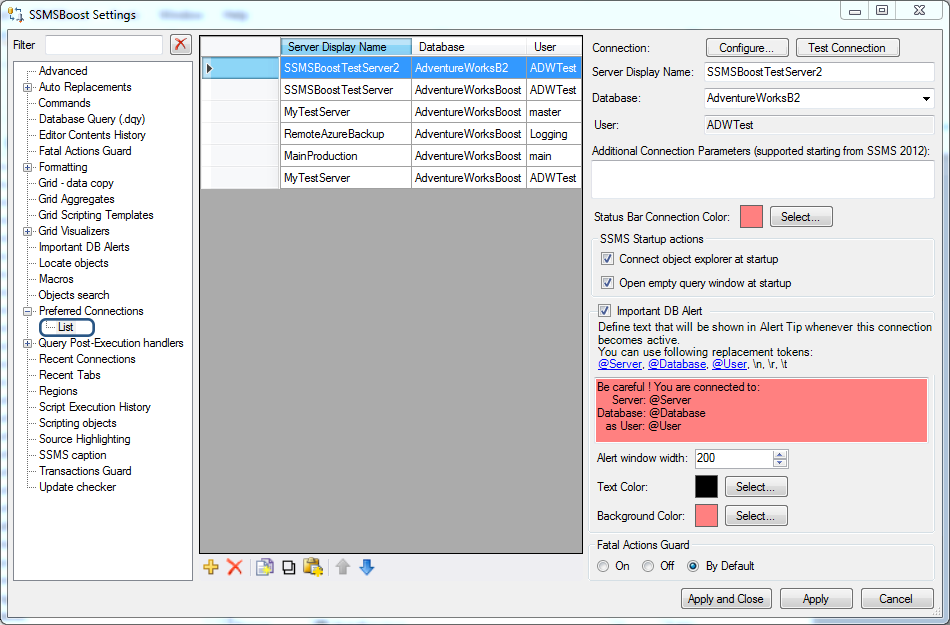
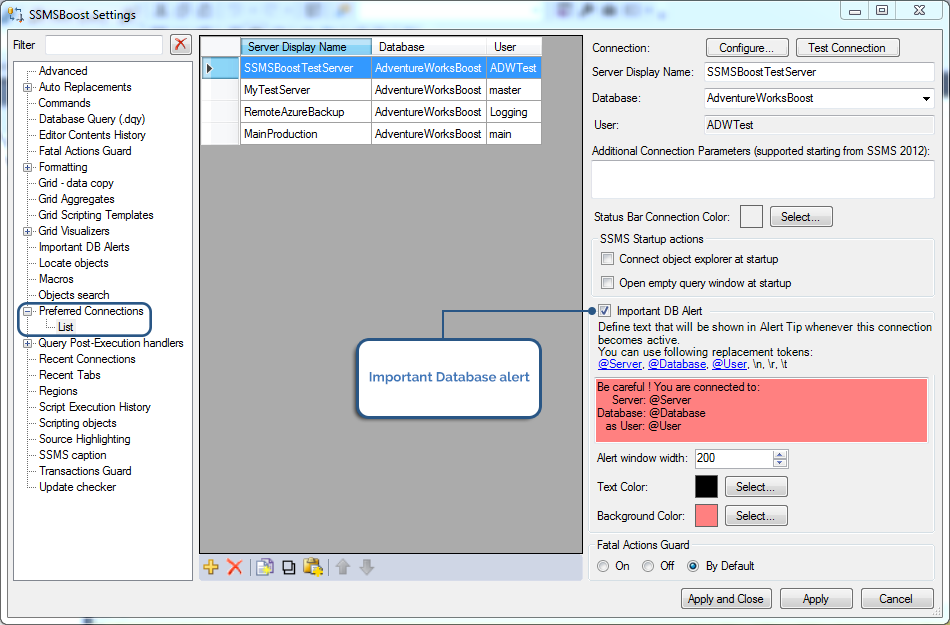
Following options can be configured under SSMSBoost ->Settings->Preferred connections->List:
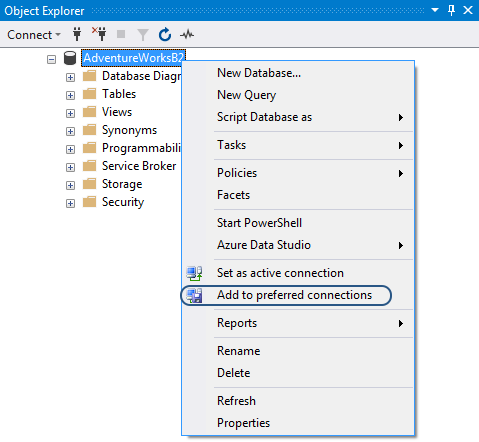
The list of your Preferred Connections will be displayed on the main toolbar in Quick connection switch drop-down that allows you to switch between connections instantly.
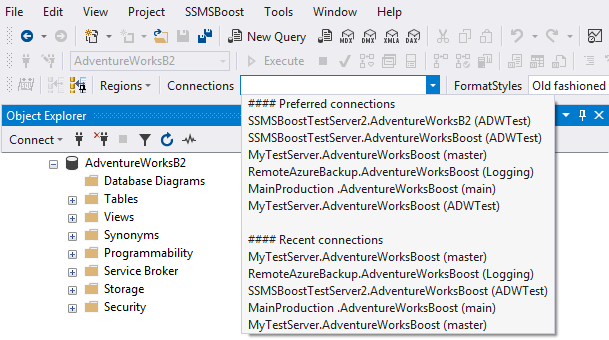
The order in Quick Connections Switch drop-down and the maximum number of recent connections can be configured at SSMSBoost->Settings->Preferred Connections
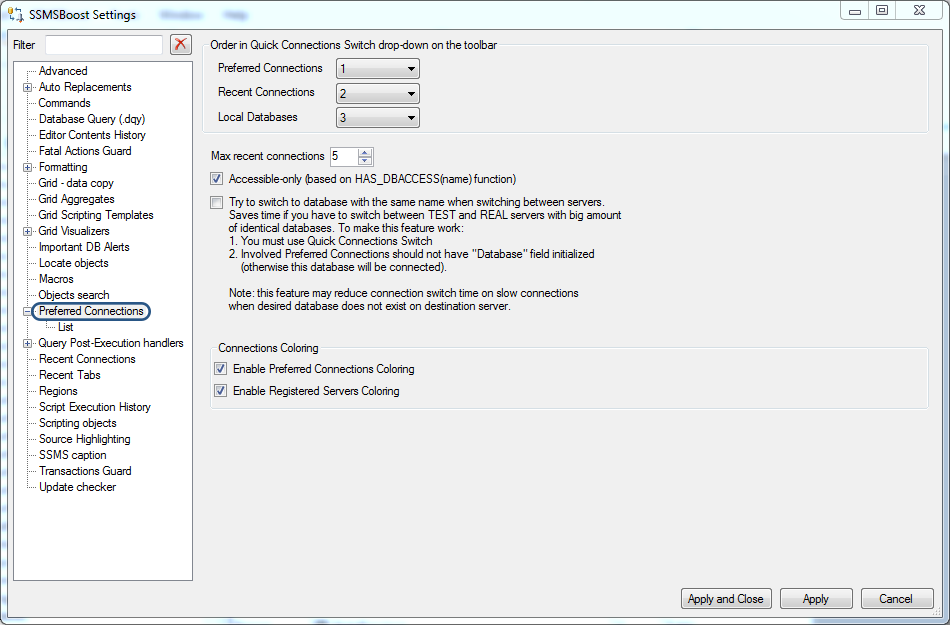
Note, that in Free Community Edition the number of preferred connections is limited to 2.
Following options can be configured under SSMSBoost ->Settings->Preferred connections->List:
- Connection alias
Server names are often too long and difficult to percept, memorize and operate (like customerserver823127.hosteddomainsample.com). To fix this inconvenience SSMSBoost added the possibility of defining user friendly Server Display Names to the original server names:
customerserver823127.hosteddomainsample.com -> DEVELOPMENT
customerserver823555.hosteddomainsample.com -> PRODUCTION - Additional Connection Parameters
Sometimes you need to specify additional parameters to establish connection with a server. SSMS basiс functionality does not provide space for the storage of these parameters forcing you to enter strings manually every time you connect to your server. SSMSBoost allows you to predefine and save Additional Connection Parameters once and for all. - Connect Object Explorer at Startup
Choose this parameter if you need SSMS to automatically start with Object Explorer connected - Open empty query window at Startup
Choose this parameter if you need SSMS to automatically start with an empty query window opened - Status Bar Connection Color
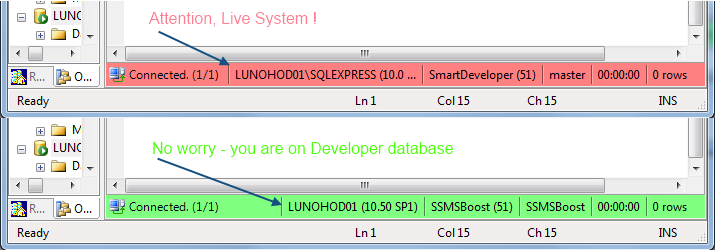
Color coding is a very effective method that improves and speeds up the perception of visual information. SSMSBoost adds this feature to help you rapidly distinguish between development (e.g. green) and production databases (e.g. red). Any RGB color can be chosen. If you define color for a preferred connection where no database is specified this color will be applied whenever any database from that server is active. SSMSBoost tracks connection changes and selects the relevant color on every reconnection.
- Important DB Alert
This feature uses the same color coding method and protects you from occasional data modifications in production environments. As soon as you change connection to the database for which this option is enabled a warning message will appear.
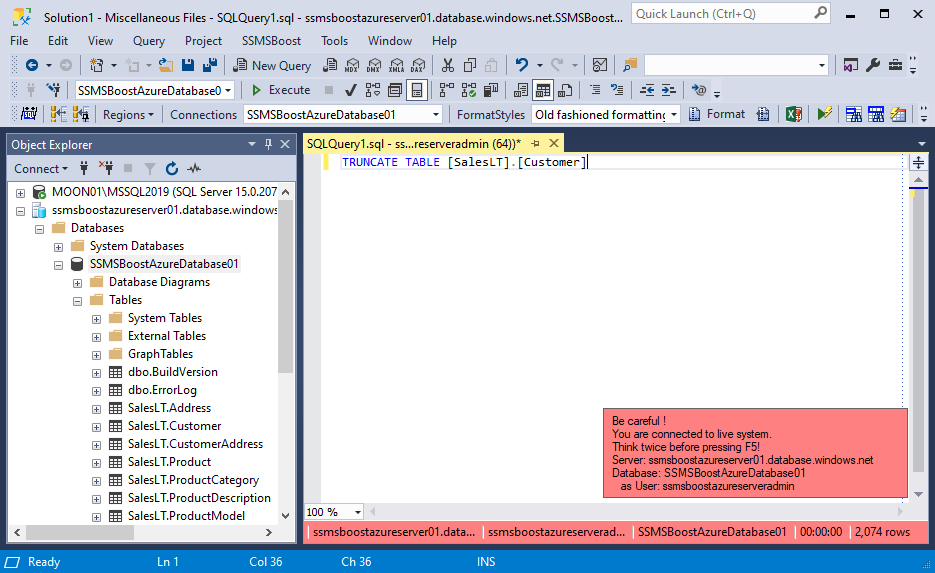
Text, color, width and the position of the warning message are fully customizable, you can use the following replacement tokens: {@Server}, {@Database}, {@User}, \r, \n, \t.
To configure message position go to SSMSBoost -> Settings -> Important DB Alerts. - Fatal Actions Guard Mode
Fatal Actions Guard is an SSMSBoost security tool that parses scripts executed in SSMS and checks for potentially dangerous statements. You can configure Fatal Actions Guard mode individually for each preferred connection
The list of your Preferred Connections will be displayed on the main toolbar in Quick connection switch drop-down that allows you to switch between connections instantly.
The order in Quick Connections Switch drop-down and the maximum number of recent connections can be configured at SSMSBoost->Settings->Preferred Connections
Note, that in Free Community Edition the number of preferred connections is limited to 2.
Quick Connection Switch
Quick Connection Switch drop-down on the toolbar combines three useful features originally missing in SSMS: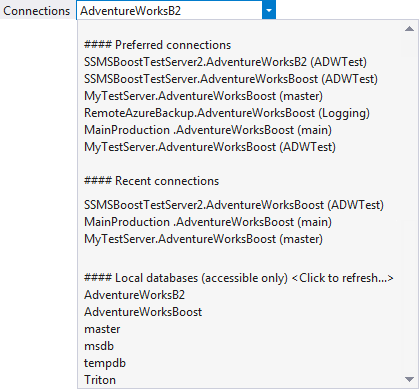
- Allows switching between Preferred connections
- Keeps track of Recent connections
- Shows all or ACCESSIBLE-only local databases
If SSMS starts with an empty environment you can choose any connection from Quick Connection Switch drop-down to create an empty document with an appropriate connection.
To perform fine-tuning of Quick Connection Switch drop-down go to SSMSBoost -> Settings-> Preferred Connections
Connection Coloring
Native SQL Server Management Studio connection dialog allows you to choose the color of the status bar when initiating a new database connection. However, this color remains the same for all connections. SSMSBoost solves this problem: you can specify an appropriate color for SERVER or SERVER/DATABASE when adding a Preferred Connection:
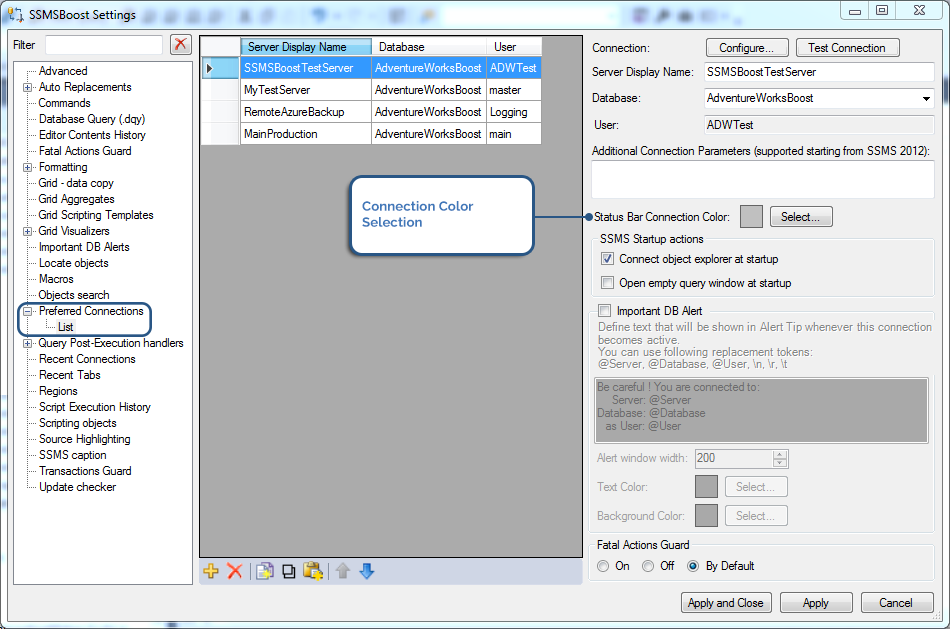
SSMSBoost tracks connection changes in real time and applies the matching color to the status bar. The most common color choice is "Red" for your live system status bar and "Green" for your test database status bar.
SSMSBoost tracks connection changes in real time and applies the matching color to the status bar. The most common color choice is "Red" for your live system status bar and "Green" for your test database status bar.
Important Database alert
This feature should be used for very important connections in addition to Connection coloring. When adding a Preferred Connection tick "Important DB Alert" checkbox, then specify alert message and color.
Whenever a current connection changes to this particular connection a floating pop-up will remind you that you are working with an important database.
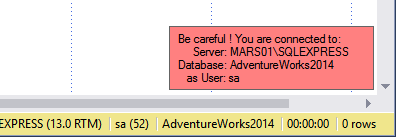
Whenever a current connection changes to this particular connection a floating pop-up will remind you that you are working with an important database.
Auto-connect Object Explorer to databases at startup
If this function is enabled SSMS will start with Object Explorer connected to your preferred databases. To use this option go to:
SSMSBoost => Settings => Preferred Connections => List
Select the database connection that you want Object Explorer to automatically initialize at startup, click "Connect object explorer at startup" and press "Apply" button.

SSMSBoost => Settings => Preferred Connections => List
Select the database connection that you want Object Explorer to automatically initialize at startup, click "Connect object explorer at startup" and press "Apply" button.
Auto-open new query window(s) at startup
If this function is enabled SSMSBoost will create empty query windows connected to your favorite databases at startup. To use this option go to:
SSMSBoost => Settings => Preferred Connections => List
Select the database connection on which you want SSMSBoost to create an empty query window, click "Open empty query window at startup" and press "Apply" button.

SSMSBoost => Settings => Preferred Connections => List
Select the database connection on which you want SSMSBoost to create an empty query window, click "Open empty query window at startup" and press "Apply" button.
Set Connection from Object Explorer
If you need to switch connection of the current SQL Editor window to any database displayed in Object Explorer - right-click it in Object Explorer and choose  Set as active connection:
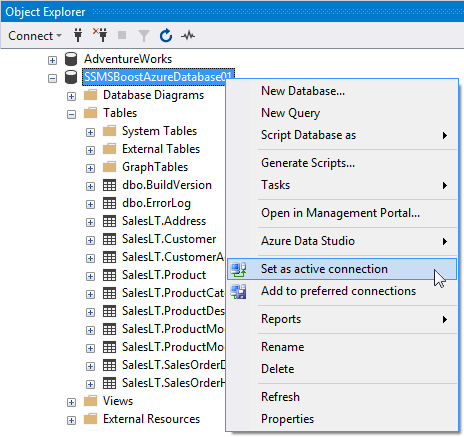
Set as active connection:
Copy full object name from Object Explorer
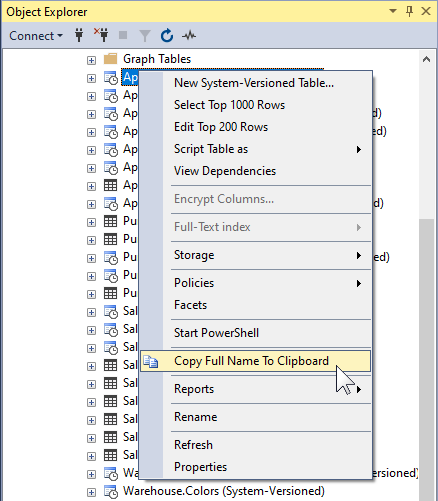
This function allows you to copy full object name in Object Explorer. Right click the object and select "Copy Full Name To Clipboard" - SSMSBoost will copy object's full name to clipboard (including database and schema).
Script Object from SQL Editor: "Go To Definition" for SQL Objects
Script object located at cursor position directly from SQL Editor.
Keyboard Shortcut: [F2]
Keyboard Shortcut: [F2]
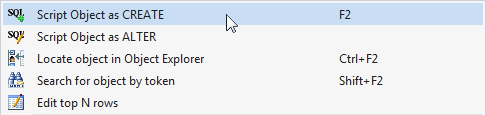 SQL Server Management Studio currently lacks the feature present in other Visual Studio Editors - "Go to definition".
SSMSBoost add-in solves this problem by adding the tool that you need: Script Object located at the cursor position to a new window.
You can invoke this feature by:
- pressing Keyboard Shortcut [F2]
- right-clicking the identifier and selecting "Script object as CREATE" or "Script object as ALTER" from the context menu
SSMSBoost performs the search for valid identifiers at cursor location and allows you to select the one you want to script. If you select a part of an identifier - SSMSBoost will perform no search and will use the selected text as object identifier.
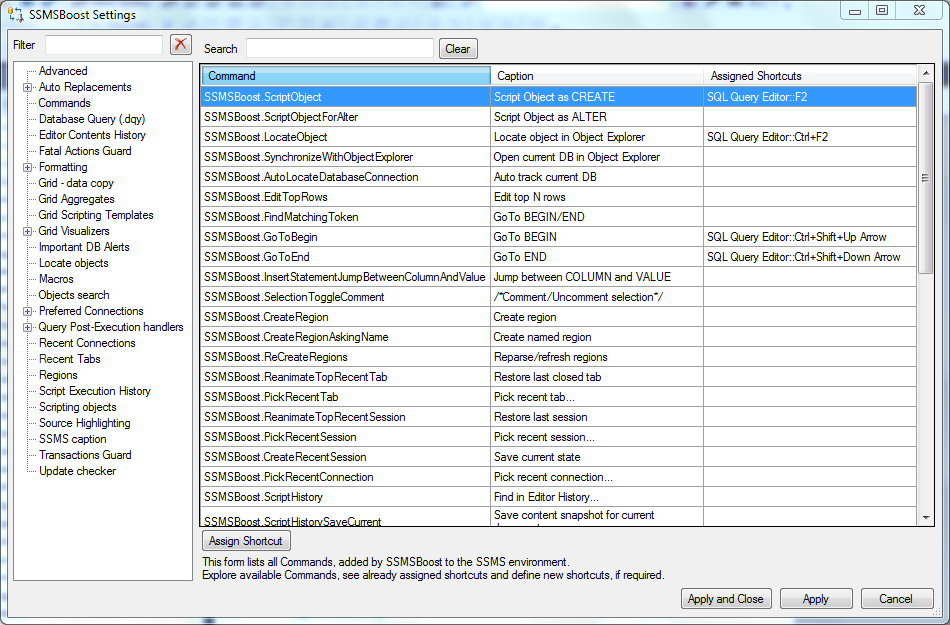
If you would like to change the default Keyboard Shortcut for the "Script Object" feature you can do that using Shortcuts Editor feature at SSMSBoost->Settings->Commands.
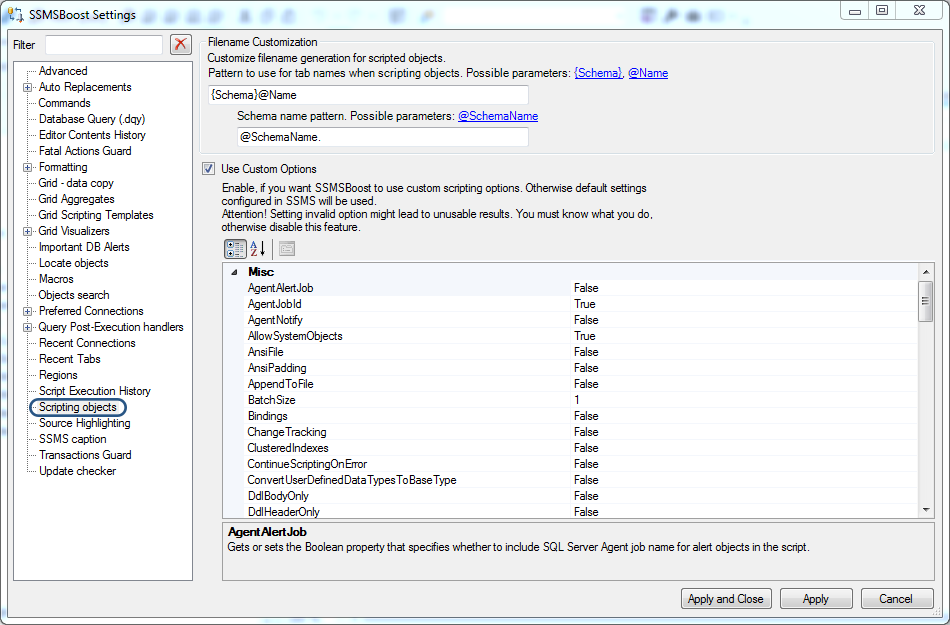
Additional Scripting options for SQL objects scripting
SSMS doesn't show all scripting options by default. For SSMSBoost operations we provide you with all internal scripting options structure available in SSMS.
Be careful - some of them might not work, some of them can stop scripting option from working. For experts use only!
Edit Top N Table Rows
SQL Server Management Studio allows you to right-click a table in Object Explorer and select "Edit top N rows". With SSMSBoost you can do the same by right-clicking a table name directly in SQL Editor.

The number of top rows can be customized in SSMS settings: Tools =>Options => SQL Server Objects Explorer =>Commands =>Table and View Options
The number of top rows can be customized in SSMS settings: Tools =>Options => SQL Server Objects Explorer =>Commands =>Table and View Options
Locate Object in Object Explorer focused in SQL Editor
This function locates an object in Object Explorer directly from SQL Editor.
When working with databases, you often need a more detailed information about an object under the cursor: its columns, parameters (for function or procedure) and other properties. If a database has hundreds of objects locating an object in Object Explorer can take some time. SSMSBoost allows you to locate an object in seconds!
To use this function place the cursor on the identifier and press CTRL+F2 or select "Locate object in Object Explorer" in context menu:
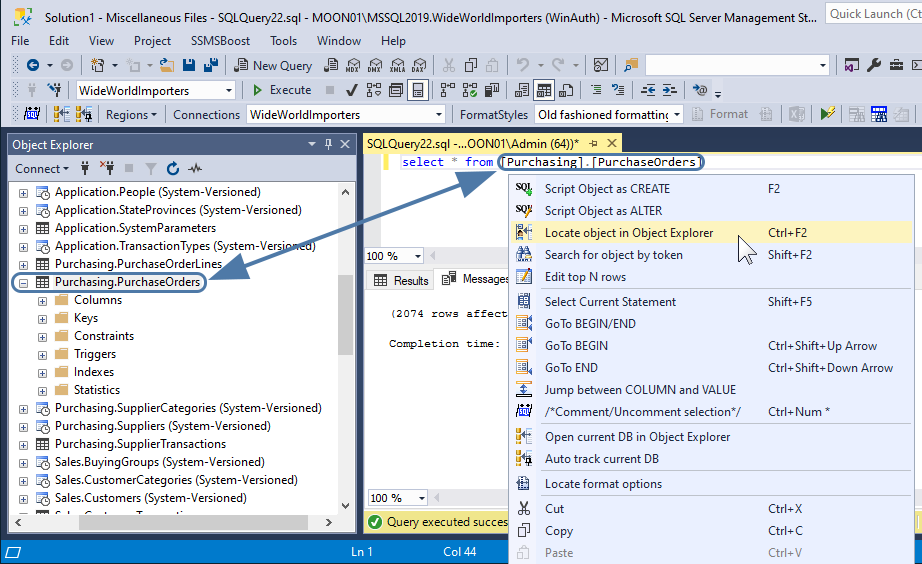
SSMSBoost searches for valid identifiers at cursor location and allows you to select the one you want to locate. If you select a part of the identifier SSMSBoost performs no search and uses the selected text as object identifier.
As soon as you press CTRL+F2 or click "Locate object in Object Explorer" in context menu the object is quickly found in the database and highlighted in Object Explorer with its node expanded so that you can easily access its properties and, for example, drag-n-drop parameters of the stored procedure into SQL Editor window.
If you want to change the default Keyboard Shortcut of "Locate Object" feature you can do that by using another SSMSBoost feature - Shortcuts editor (needed only in SSMS 2008, as far as SSMS 2012 and later versions have built-in shortcuts editor)
When working with databases, you often need a more detailed information about an object under the cursor: its columns, parameters (for function or procedure) and other properties. If a database has hundreds of objects locating an object in Object Explorer can take some time. SSMSBoost allows you to locate an object in seconds!
To use this function place the cursor on the identifier and press CTRL+F2 or select "Locate object in Object Explorer" in context menu:
SSMSBoost searches for valid identifiers at cursor location and allows you to select the one you want to locate. If you select a part of the identifier SSMSBoost performs no search and uses the selected text as object identifier.
As soon as you press CTRL+F2 or click "Locate object in Object Explorer" in context menu the object is quickly found in the database and highlighted in Object Explorer with its node expanded so that you can easily access its properties and, for example, drag-n-drop parameters of the stored procedure into SQL Editor window.
If you want to change the default Keyboard Shortcut of "Locate Object" feature you can do that by using another SSMSBoost feature - Shortcuts editor (needed only in SSMS 2008, as far as SSMS 2012 and later versions have built-in shortcuts editor)
Track current database
When you work with multiple opened scripts connected to different servers and databases, the option of instant location of the current database in Object Explorer might be very useful.
SSMSBoost gives you this possibility - just hit on SSMSBoost toolbar and the current Server/Database will be focused in Object Explorer.

The left button is responsible for a single-time action while the button allows you to always focus on the current database whenever you change the connection of your script or switch between scripts.

This function is similar to "synchronize table of contents" in Windows Help or "synchronize solution explorer" in Visual Studio.
SSMSBoost gives you this possibility - just hit
on SSMSBoost toolbar and the current Server/Database will be focused in Object Explorer.The left button is responsible for a single-time action while the
button allows you to always focus on the current database whenever you change the connection of your script or switch between scripts. This function is similar to "synchronize table of contents" in Windows Help or "synchronize solution explorer" in Visual Studio.
Autoreplacements
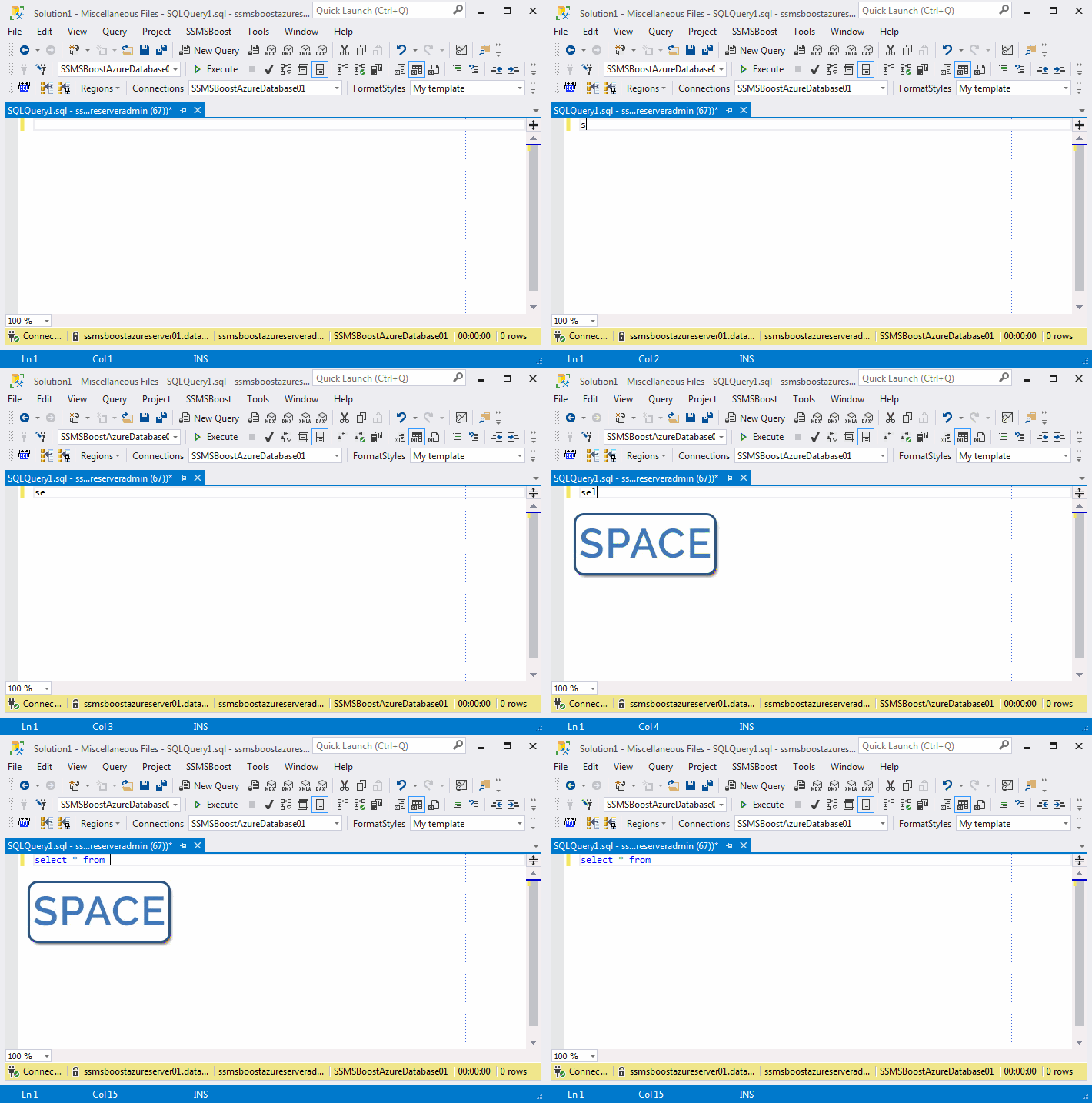
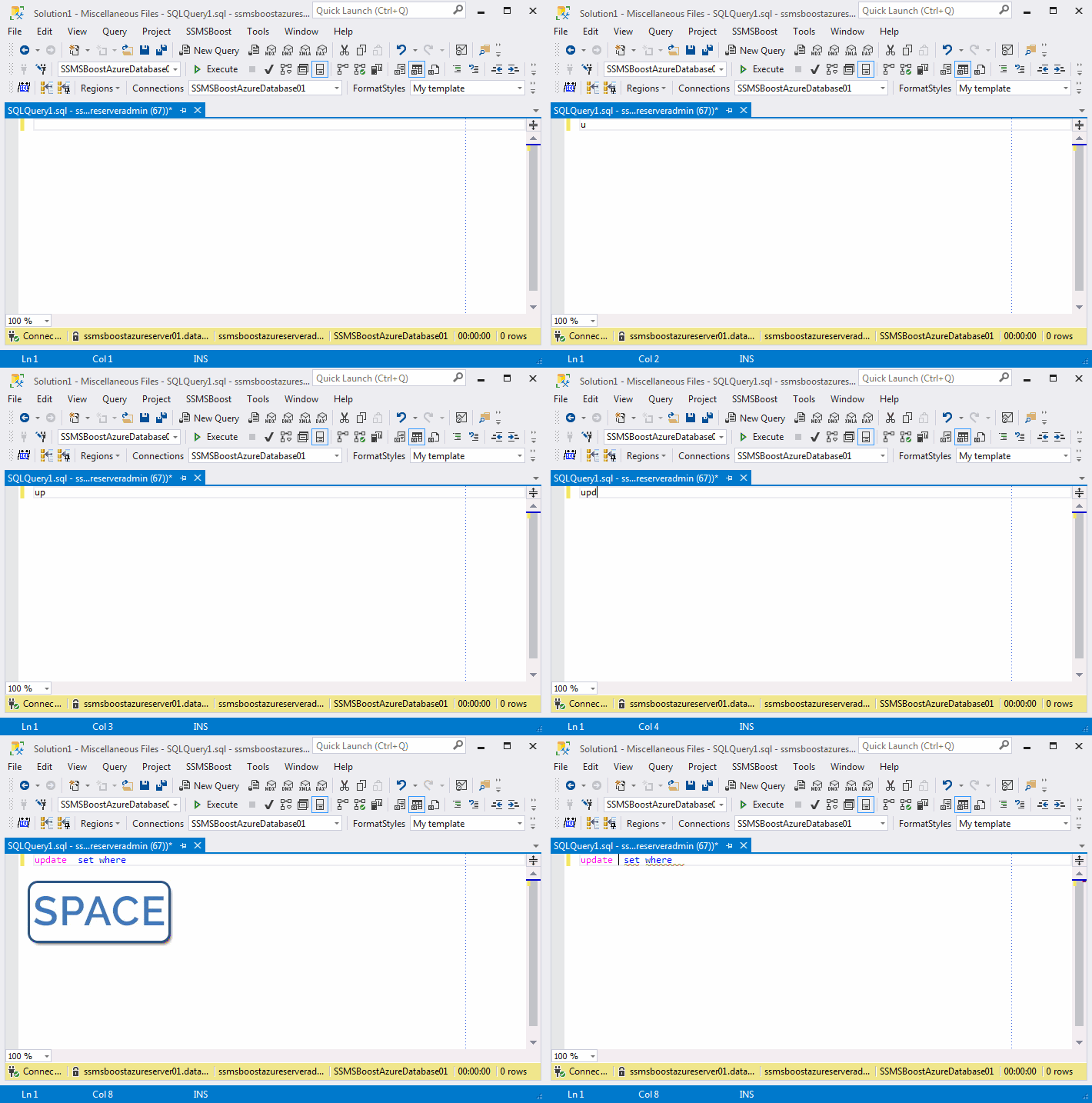
AutoReplacements or "snippets" allow you to input frequently used SQL commands much faster. Type "sel" and press SPACE, ENTER or TAB (configurable in Settings) - and it will be replaced with "select * from". "upd" will be replaced with "update # set where". "#" defines where cursor will be placed after the replacement is done (this symbol is customizable with the help of AutoReplacement). SSMSBoost AutoReplacements improve similar SSMS basic functionality:
Sample for "sel" token:
Sample for "upd" token:
- Tokens can be case-sensitive
- It is possible to specify final cursor location, after AutoReplacement is triggered
- You can use standard SSMS parameters like <name, type, default value> in AutoReplacements. SSMSBoost detects these parameters and automatically shows Parameters replacement dialog saving you additional clicks/keystrokes.
- The following parameters can be used in AutoReplacements: {User}, {Server}, {Database}, {Connection}, {Timestamp} , {Timestamp:Format} (.Net datetime format). These parameters will be replaced with the actual information after AutoReplacement is triggered. For example you can create an AutoReplacement to place a Username/Timestamp comment into your source code.
Sample for "sel" token:
Sample for "upd" token:
Custom SSMS window title (caption)
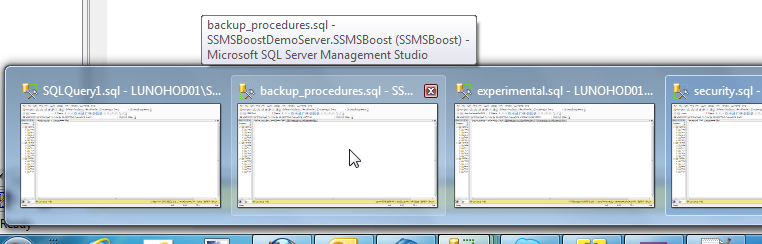
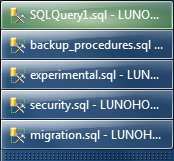 Originally SSMS displays static caption: "Microsoft SQL Server Management Studio". If you have several instances open and try to switch between them using Alt-Tab or task bar you will not be able to see the difference between instances. SSMSBoost makes it possible to redefine the caption of SSMS window so that you will be able to see current document name and connection information. You can also define your own pattern to be used as the window title.
 Available parameters are: @FileName, @Server, @Database, @User. Parameters can be used within the main pattern as well as in sub-patterns {ProjectName} and {Connection}. {ProjectName} pattern will be inserted only if SSMS project is loaded. {Connection} pattern will be inserted only if connection is open.
Picture on the right shows you how different SSMS instances are displayed on the task bar. Pictures below show how the caption of SSMS looks like and how windows appear in Aero Peek.
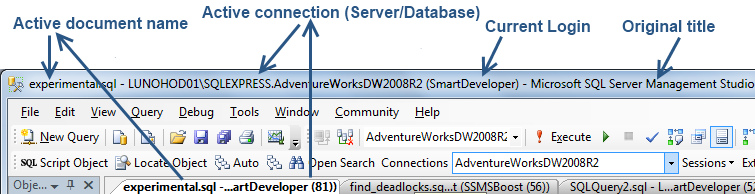
Aero Peek with modified SSMS caption
Advanced Objects Search
Advanced Objects Search allows you to search for database objects, columns and function parameters across one or multiple connections directly from SSMS user interface.
To open the search dialog click button on the SSMSBoost toolbar. Dialog is available in floating or docked state within SSMS interface.
To do the search start typing first letters of the object, column or parameter name in the filter row and get search results on the fly. You can use Wildcard characters ? and * in your search string.

To open the search dialog click
button on the SSMSBoost toolbar. Dialog is available in floating or docked state within SSMS interface.To do the search start typing first letters of the object, column or parameter name in the filter row and get search results on the fly. You can use Wildcard characters ? and * in your search string.
-
1. Sync connection with current document sets search context to the current connection of the active SQL Editor window.
2. Current search context drop-down (in single-database search mode) allows you to select search context.
3. Refresh reloads objects cache. Use it only if you have modified database objects.
4. Limit to Favorite Object Types search will be performed only within your favorite object types (configurable in settings).
5. Show System Objects adds system objects to search results
6. Multi-Database search button switches between single- and multi-database search modes.
7. Settings button opens Settings window where you can configure default behavior of the dialog and some additional useful options. Make sure you check these options - they can save you a lot of time.
-
8. Script Selected Object(s) - opens SQL source in a new editor window
9. Locate Object - navigates Object Explorer to object's node
10. Copy Selected Identifier(s) into Current Document - inserts selected objects into current cursor position
11. Right-click an object (or the selection of multiple objects) to open the context menu with the functions described above.
Search for Object by Token
SSMSBoost offers a very powerful search engine that allows you to search for database objects, columns and function parameters across one or multiple connections directly from SSMS user interface.
Search for Object by Token is a feature that makes search objects search function even more convenient. To use it place cursor on the object or column and hit SHIFT+F2.

This tool immediately sets current text string under cursor as filter string in the Object Search dialog.

This can help you find all objects containing particular column, or objects containing some particular string in their name. This might be helpful, for example, when you want to find all occurrences of some column across all database objects.
This tool immediately sets current text string under cursor as filter string in the Object Search dialog.
This can help you find all objects containing particular column, or objects containing some particular string in their name. This might be helpful, for example, when you want to find all occurrences of some column across all database objects.
Select Current Statement / Run current statement
We have received a lot of requests from our users to implement "Run current SQL statement" functionality, as finding and selecting the boundaries of
the current SQL Statement to perform "Run selected statement" is very time-consuming and requires several keyboard strokes and mouse clicks.
We have implemented "Select Current Statement" (SHIFT+F5) feature which, followed by "Execute (F5)", gives you the desired "Run current statement" functionality in SSMS Query Editor.
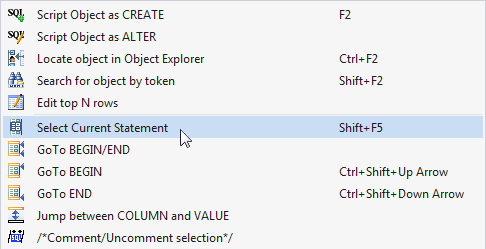
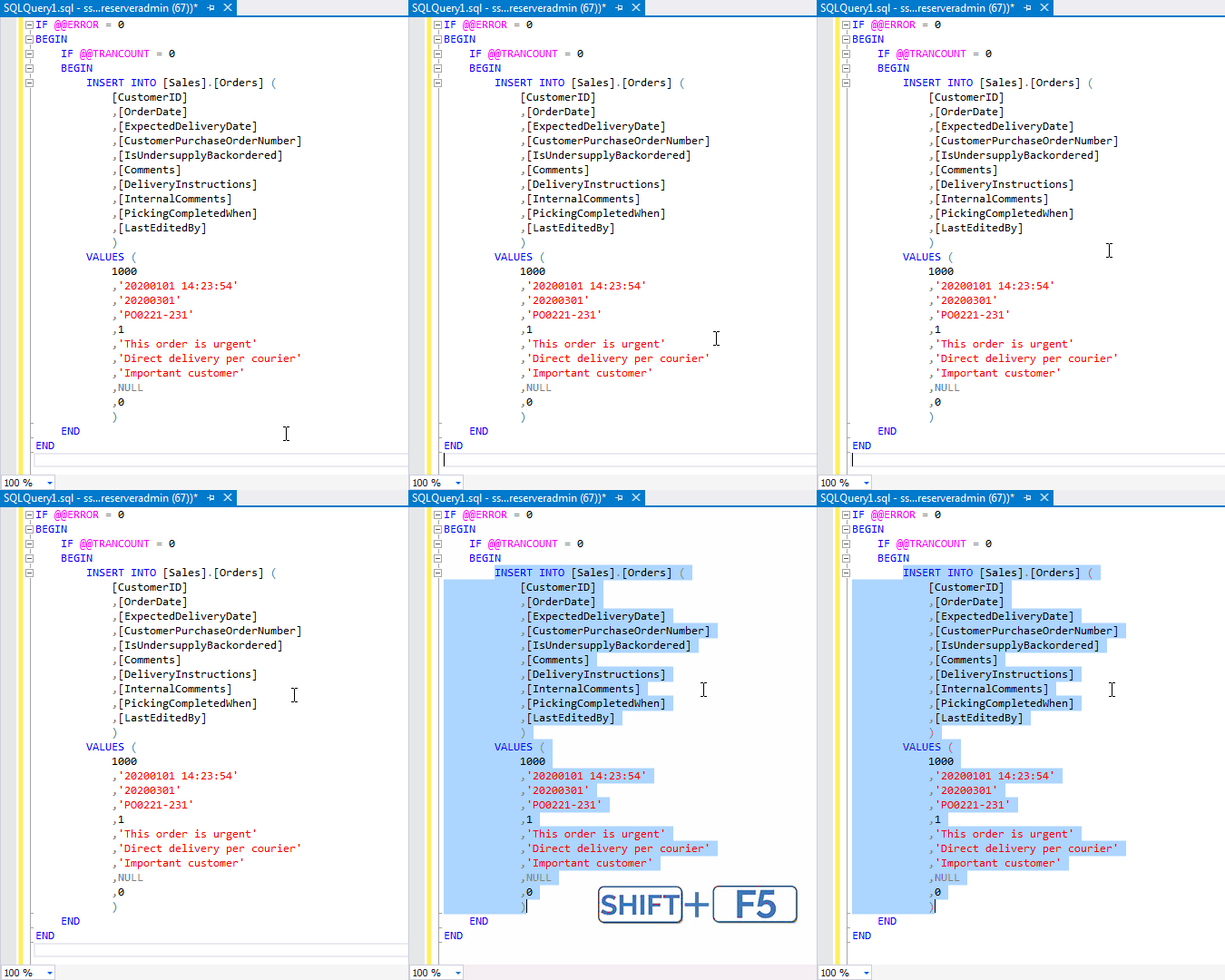
We did not implement a one-click "Run current statement" command for security reasons - to save you from fatal errors. You have the last chance to review statement boundaries that have automatically been detected by parser before hitting "F5".
We have implemented "Select Current Statement" (SHIFT+F5) feature which, followed by "Execute (F5)", gives you the desired "Run current statement" functionality in SSMS Query Editor.
We did not implement a one-click "Run current statement" command for security reasons - to save you from fatal errors. You have the last chance to review statement boundaries that have automatically been detected by parser before hitting "F5".
Columns Organizer
You can activate columns organizer in SQL Editor using the right-click button on a valid SELECT SQL Statement.
Columns Organizer will allow you to expand * into the list of columns, sort them and perform somer other
manipulations, like adding or removing aliases.
Pivot Builder
Description will be added later in March 2024.
Jump between matching BEGIN/END tokens
This function allows you to jump to BEGIN or END of the current block or jump between corresponding BEGIN/END tokens. To activate this function select the corresponding command in SQL Editor context menu.
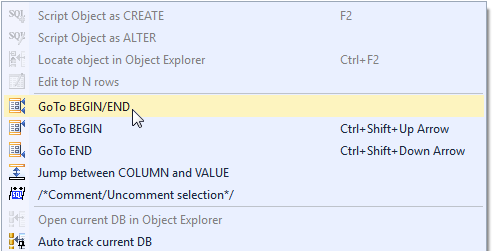
You can also use universal "JUMP" shortcuts Ctrl+Shift+Up Arrow to navigate "UP" (to BEGIN) or Ctrl+Shift+Down Arrow to navigate "Down" (to END). For better visibility the corresponding BEGIN/END pairs are highlighted.
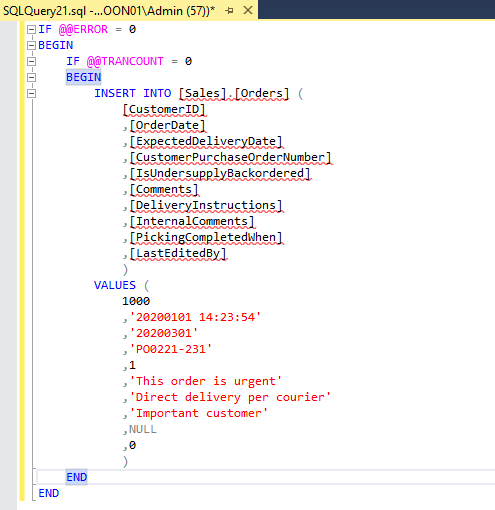
These shortcuts are shared with Jump between COLUMN/VALUE within INSERT statement functionality and act depending on the current cursor position.
You can also use universal "JUMP" shortcuts Ctrl+Shift+Up Arrow to navigate "UP" (to BEGIN) or Ctrl+Shift+Down Arrow to navigate "Down" (to END). For better visibility the corresponding BEGIN/END pairs are highlighted.
These shortcuts are shared with Jump between COLUMN/VALUE within INSERT statement functionality and act depending on the current cursor position.
Jump between brackets ()
Quick matching of values within brackets is a very convenient time-saving feature. With SSMSBoost jump between bracket pairs is performed with hotkeys: CTRL+SHIFT+UP is used to move the cursor leftwards to the opening bracket and CTRL+SHIFT+DOWN moves the cursor rightwards to the closing bracket.

Note that the same hotkeys can now be used to jump between matching BEGIN/END tokens and between COLUMN/VALUE within INSERT statement
Note that the same hotkeys can now be used to jump between matching BEGIN/END tokens and between COLUMN/VALUE within INSERT statement
Jump between COLUMN/VALUE within INSERT statement
When editing large INSERT statements with big number of columns involved it is useful to know the corresponding COLUMN of the currently edited VALUE. And vice versa: sometimes you want to locate the corresponding VALUE within values list for the current COLUMN. The solution is to use "Jump between COLUMN and VALUE" command in SQL Editor context menu.
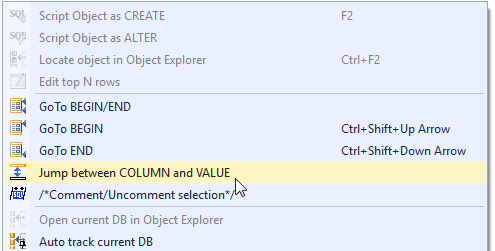
You can also use universal "JUMP" shortcuts Ctrl+Shift+Up Arrow to navigate "UP" (from VALUE to COLUMN) or Ctrl+Shift+Down Arrow to navigate "Down" (from COLUMN to VALUE). For better visibility the corresponding COLUMN/VALUE pairs are highlighted
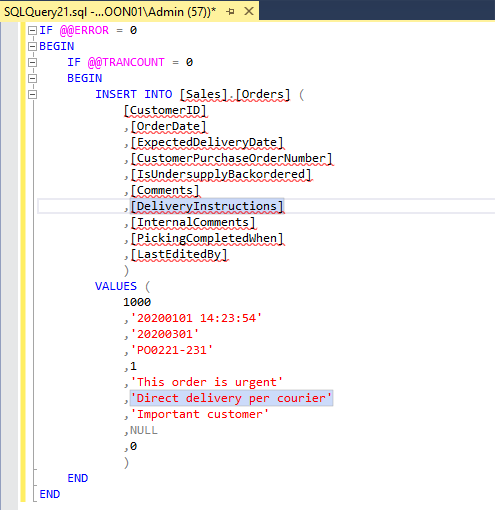
These shortcuts are shared with GoTo BEGIN/END functionality and act depending on the current cursor placement.
You can also use universal "JUMP" shortcuts Ctrl+Shift+Up Arrow to navigate "UP" (from VALUE to COLUMN) or Ctrl+Shift+Down Arrow to navigate "Down" (from COLUMN to VALUE). For better visibility the corresponding COLUMN/VALUE pairs are highlighted
These shortcuts are shared with GoTo BEGIN/END functionality and act depending on the current cursor placement.
Comment/Uncomment selection
SSMS has a standard feature that allows you to comment selected text, however, it uses "--" syntax, thus making it impossible to insert comments within the line.
SSMSBoost added a smart /*comment selection*/ feature which does exactly what developers expect it to do: it puts /**/ marks at both sides of the selected text:
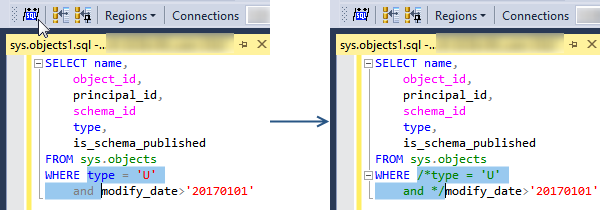
This feature can also be used to remove comments when a selection perfectly matches comment bounds (works with both /**/ and -- syntax):
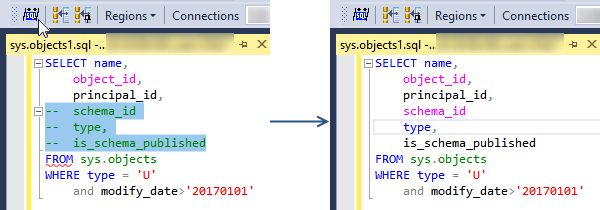
To comment any selected statement in just one keystroke Press CTRL+* with NumLock enabled:

Selected statement will be commented automatically.

If you select a commented statement the same key combination will uncomment it.
This feature can also be used to remove comments when a selection perfectly matches comment bounds (works with both /**/ and -- syntax):
To comment any selected statement in just one keystroke Press CTRL+* with NumLock enabled:
Selected statement will be commented automatically.
If you select a commented statement the same key combination will uncomment it.
Regions in SQL Server Management Studio !
SSMSBoost adds the possibility to use common regions syntax in SQL Editor:
--#region [Name]
--#endregion
Regions will be recognized and processed by our add-in and expand/collapse symbols will be placed near a region head.
Regions functionality is available at SSMSBoost->Query->Regions:
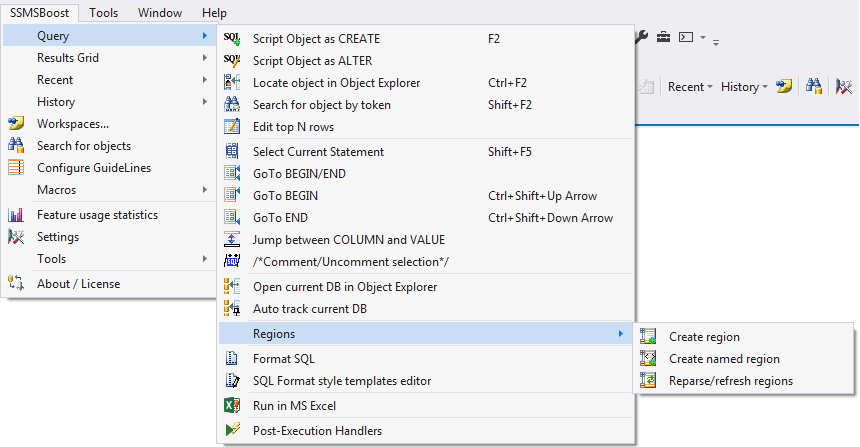
Following commands are available:
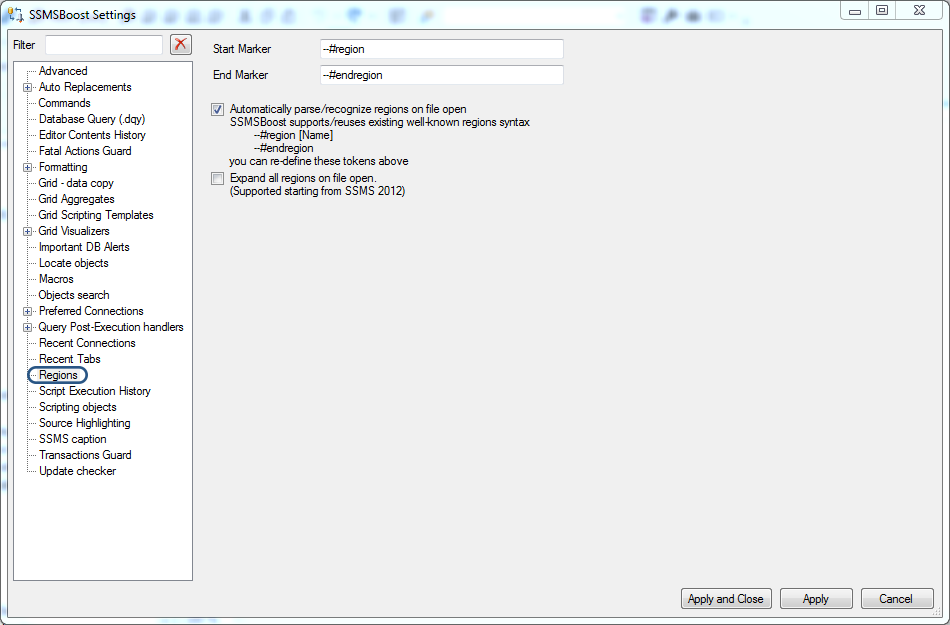
--#region [Name]
--#endregion
Regions will be recognized and processed by our add-in and expand/collapse symbols will be placed near a region head.
Regions functionality is available at SSMSBoost->Query->Regions:
Following commands are available:
- Create region creates unnamed region. If you run it with some part of code selected - it will be wrapped into newly created region.
- Create named region creates a region with a name:
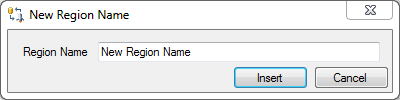
If you run it when some part of code is selected - it will be wrapped into a newly created region.
- Reparse/Refresh regions forces re-processing of the current document. All regions will be recreated. This can be necessary if you apply massive changes to the document. Regions are parsed automatically when a script is opened in the editor.
Format SQL Code
SSMSBoost allows you to format SQL Code using two different formatting engines.
To create/edit a formatting template:

You can also manage formatting templates under SSMSBoost->Settings->Formatting. Here you can find import/export option that allows you to share templates with your colleagues.
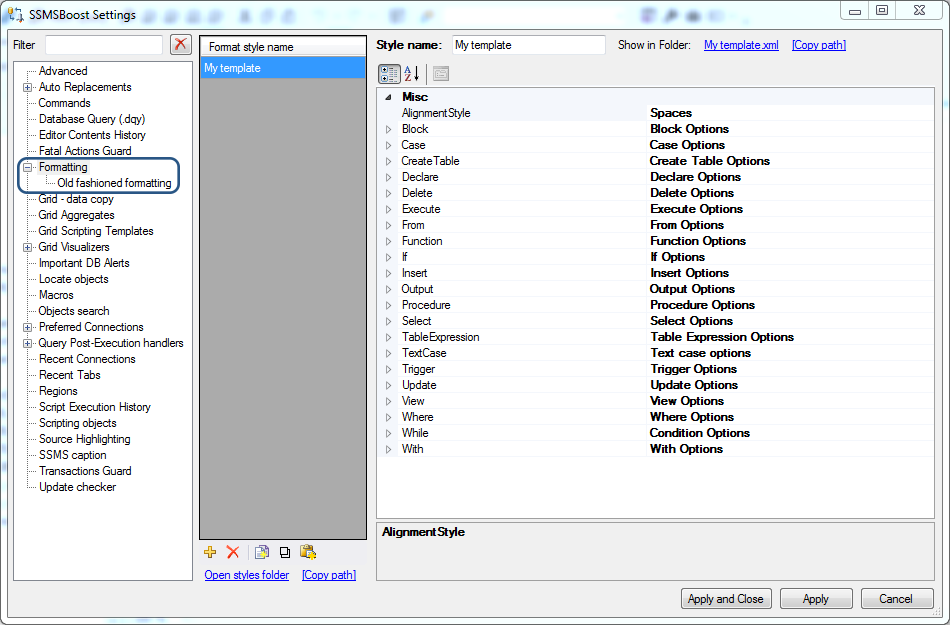
You can configure formatting options under SSMSBoost->Settings->Formatting->Old fashioned formatting.

SSMSBoost formatting engine
SSMSBoost formatting engine offers you a wide variety of options. The best way to learn them is to use a built-in Templates editor which will apply changes to the formatting template while you're editing it.To create/edit a formatting template:
- Open one of your SQL scripts (it will be used to display formatting result while you're changing options)
- Run SSMSBoost ->Query->SQL Format style templates editor
- Change template options and they will immediately be applied to your code.
- Hit "Save changes" when you are done


You can also manage formatting templates under SSMSBoost->Settings->Formatting. Here you can find import/export option that allows you to share templates with your colleagues.
"Poor Man's T-SQL Formatter"
This formatter is added as an external tool which SSMSBoost calls in the background. The project's name is "Poor Man's T-SQL Formatter" and it is displayed as "Old fashioned formatting" in formatting drop-down. Project author Tao Klerk did not update it for several years but many users were asking if it is possible to use this formatter under the latest SSMS versions, so we decided to include it into our add-in.You can configure formatting options under SSMSBoost->Settings->Formatting->Old fashioned formatting.
Results Grid Scripter (Flexible Template-based Scripting)
Results Grid Scripter is a powerful tool that allows you to script data from Result Grid to disk or clipboard in different formats with the help of customizable scripting templates.
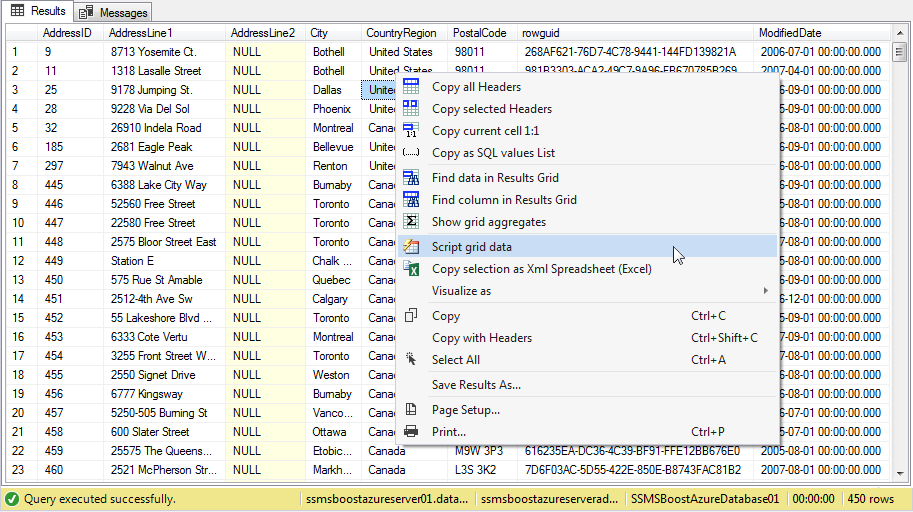
It takes just a few clicks to export data from Results grid to Excel (as XML spreadsheet) or your Web browser (as HTML table). To do so right-click Results Grid and choose Script grid data:
A dockable floating window will appear:
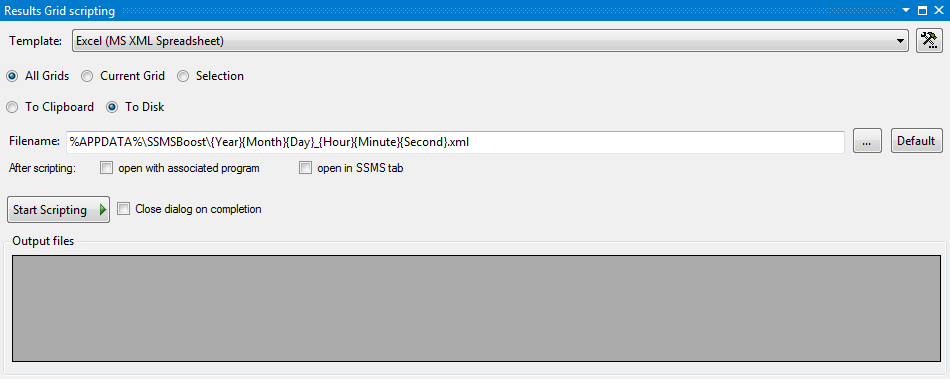
Choose between "All grids", "Current grid" or "Selection" and select "To Disk". Use drop-down "Template" menu to select "Excel (MS XML Spreadsheet)" and press "Start Scripting" button:
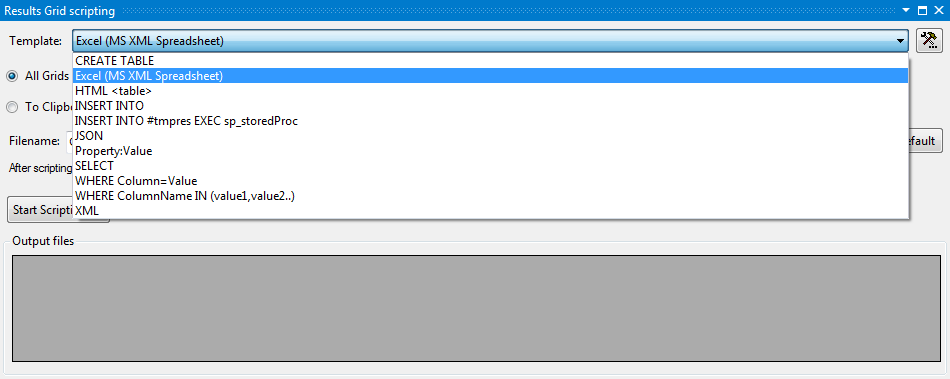
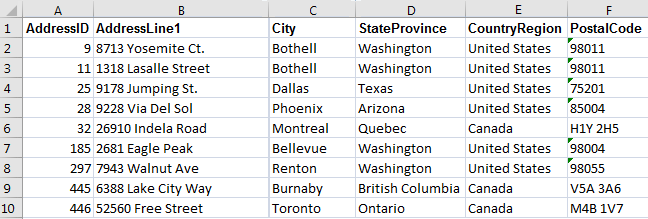
Selected data from Results Grid will immediately be scripted to MS Excel. Scripted values remain consistent and keep all data type information, strings are not truncated:
You can also script data in JSON format. Use drop-down "Template" menu to select "JSON" and press "Start Scripting" button:
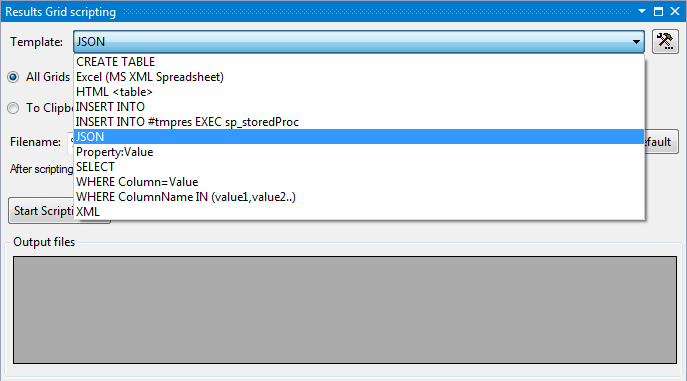
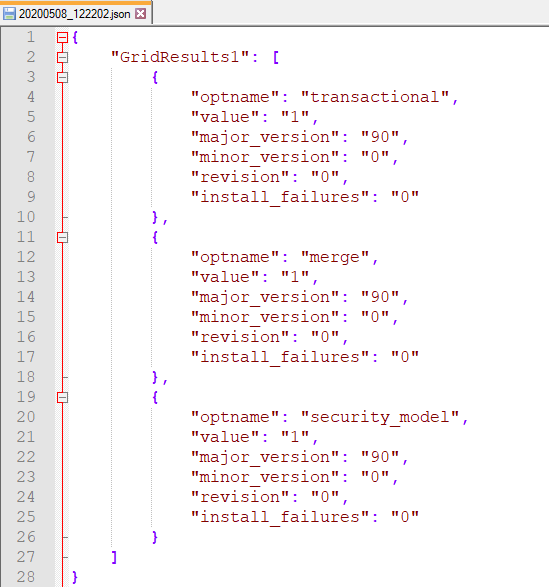
Selected data from Results Grid will immideately be scripted to a *.json file in %APPDATA%\SSMSBoost folder, or any other location that you indicate manually
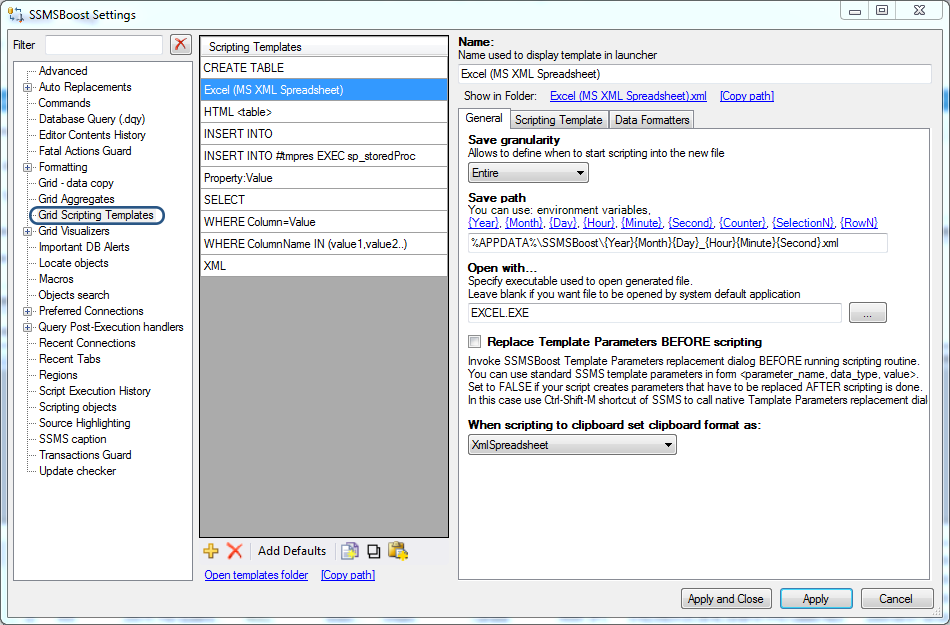
 button to the left of the drop-down "Template" menu
Results Grid Scripter is shipped with the following predefined templates:
If you think you have created useful ones and would like to share them with SSMS community don't hesitate to post your templates to our forum .
We recommend to test each provided template at least once for better understanding of its purpose.
It takes just a few clicks to export data from Results grid to Excel (as XML spreadsheet) or your Web browser (as HTML table). To do so right-click Results Grid and choose
Script grid data:A dockable floating window will appear:
Choose between "All grids", "Current grid" or "Selection" and select "To Disk". Use drop-down "Template" menu to select "Excel (MS XML Spreadsheet)" and press "Start Scripting" button:
Selected data from Results Grid will immediately be scripted to MS Excel. Scripted values remain consistent and keep all data type information, strings are not truncated:
You can also script data in JSON format. Use drop-down "Template" menu to select "JSON" and press "Start Scripting" button:
Selected data from Results Grid will immideately be scripted to a *.json file in %APPDATA%\SSMSBoost folder, or any other location that you indicate manually
Grid Scripting Templates
Existing templates can be flexibly customized and new templates can be added at SSMSBoost->Settings->Grid Scripting Templates. You can reach this menu directly from Results Grid scripting window by pressing button to the left of the drop-down "Template" menuResults Grid Scripter is shipped with the following predefined templates:
- Excel (MS XML Spreadsheet) - saves results in MS XML Spreadsheet format that can be opened in MS Excel.
Values preserve their data types: If you export telephone numbers to Excel they will not be treated as formulas anymore! - JSON - get Results Grid data directly in JSON format. No further converters required.
- HTML table - results are saved as HTML Table
- INSERT INTO - generates a table declaration that can be used to insert execution results of the stored procedure.
- INSERT INTO #tmpres EXEC sp_storedProc - quickly generates a temporary table declaration that can be used to insert execution results of the stored procedure.
- Property:Value - copies results as ColumnName:Value
- SELECT - scripts results as SELECT VALUES statement. It is some kind of table data exported as script. Data types are preserved.
- WHERE Column=Value - selected values are copied as 'WHERE (ColumnName=Value) OR ...' allowing you to quickly generate WHERE filters by selecting required column values
- WHERE ColumnName IN (value1,value2..) - generates WHERE ColumnName in (Value1,..) filter based on selected values
- XML - results are saved as pure XML document
If you think you have created useful ones and would like to share them with SSMS community don't hesitate to post your templates to our forum .
We recommend to test each provided template at least once for better understanding of its purpose.
Copy Results Grid data to Excel (as xml Spreadsheet)
Copying data from Results grid to Excel via built-in Ctrl-C or Ctrl-Shift-C commands results in the loss of data type information:

Regular copy-paste function operates with text representation of data, so Excel needs to "guess" its type and regional settings. SSMSBoost allows you to copy Results Grid data in XML Spreadsheet format, preserving data type and information precision.
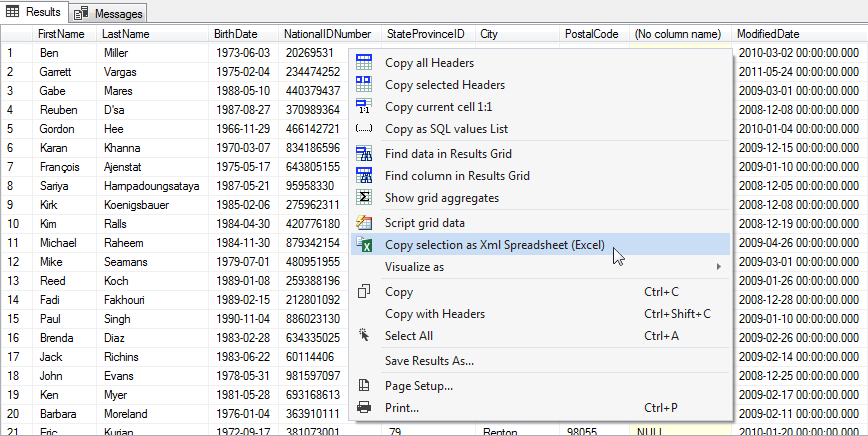
Bold font is used for table headers. Strings remain Strings, DateTime remains DateTime and Numeric and Money data keep their precision and scale.

If you like this feature, make sure you read about Results Grid Scripting: it is way more flexible, customizable and designed to output really bit amounts of data.
Regular copy-paste function operates with text representation of data, so Excel needs to "guess" its type and regional settings. SSMSBoost allows you to copy Results Grid data in XML Spreadsheet format, preserving data type and information precision.
Bold font is used for table headers. Strings remain Strings, DateTime remains DateTime and Numeric and Money data keep their precision and scale.
If you like this feature, make sure you read about Results Grid Scripting: it is way more flexible, customizable and designed to output really bit amounts of data.
Find Data in Results Grid
Find Data in Results grid is a powerful tool that allows you to search for values in current grid, all grids or selected block of data. To use this function press CTRL+F in SSMS Results grid or choose "Find data in Results Grid" in context menu.
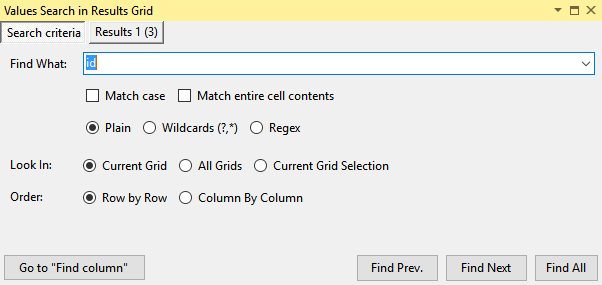
With this feature you can:
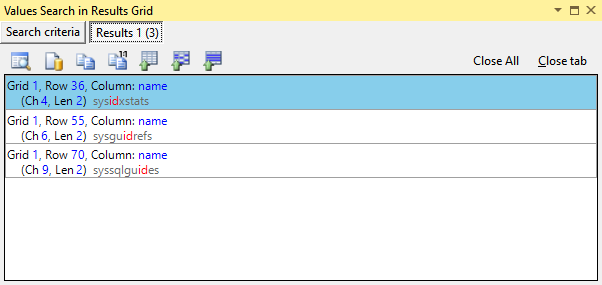
You can make SSMSBoost select found cells in Results Grid to script them or perform subsequent search within selection. The search dialog is dockable, you can dock it to any place within SSMS workspace and it will remember it's location. We recommend to dock it under Object Explorer.
With this feature you can:
- Refine your search using wildcards and regular expressions
- Define search range, search tolerance and search order
- Double-click search result to navigate to corresponding cell
- Copy cell data, preview data, focus matched cell
- Switch to "Find column in Results Grid" dialog in just one click
You can make SSMSBoost select found cells in Results Grid to script them or perform subsequent search within selection. The search dialog is dockable, you can dock it to any place within SSMS workspace and it will remember it's location. We recommend to dock it under Object Explorer.
Find column in Results Grid
SSMSBoost allows you to search for columns in all currently displayed Results grids (result sets returned by a query can be multiple). To use this function press CTRL+F in SSMS Results grid and click Go to "Find column" button in the search dialog or choose "Find column in Results Grid" in context menu. Start typing the query in the search string and SSMSBoost will filter results in real time
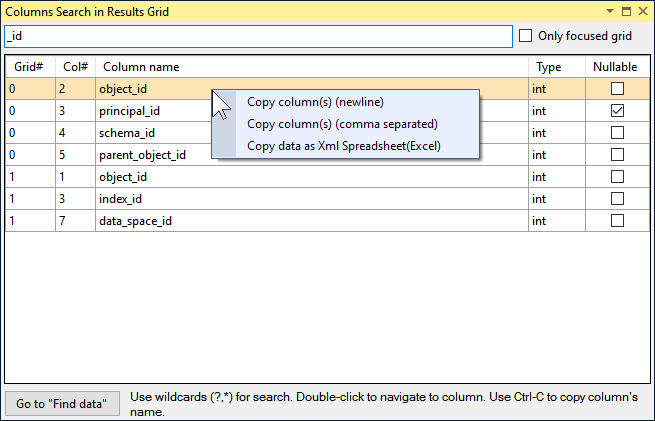
With this feature you can:
With this feature you can:
- Search using wildcards
- Double-click the column to focus it in the corresponding grid
- Select a column name and press CTRL+C to copy it
- See the column data type, precision and NULLability that are displayed in results set. Yes - now you know the exact data types of the result set.
- Quickly switch to Find in Results Grid dialog using Go to "Find data" button at the bottom
Copy Results Grid Headers (Column Names)
This function allows you to copy Results grid headers or Column names.
Select cells from the columns you want to copy (CTRL+Click), choose "Copy selected Headers" in Results grid context menu and column names will be copied to clipboard.
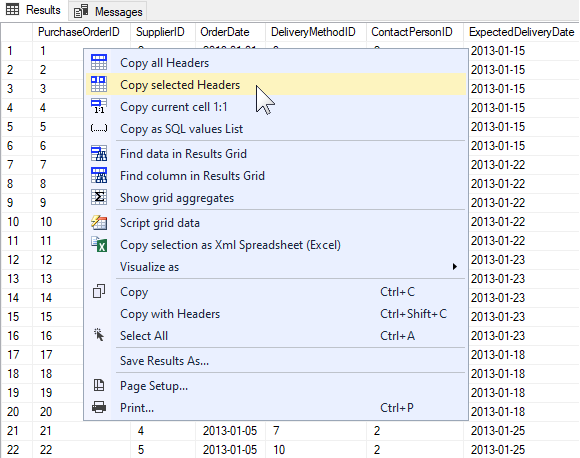
This action creates a comma-separated list that can be pasted wherever you need. Holding down CTRL key while clicking "Copy selected Headers" gets column names comma-separated each in new line, and holding down SHIFT button does the same but without any separator.
You can also run "Copy all Headers" command if you need to copy all headers. Note that it makes no difference what cells of which row you select - only the column matters.
Select cells from the columns you want to copy (CTRL+Click), choose "Copy selected Headers" in Results grid context menu and column names will be copied to clipboard.
This action creates a comma-separated list that can be pasted wherever you need. Holding down CTRL key while clicking "Copy selected Headers" gets column names comma-separated each in new line, and holding down SHIFT button does the same but without any separator.
You can also run "Copy all Headers" command if you need to copy all headers. Note that it makes no difference what cells of which row you select - only the column matters.
Copy cell data from Results Grid 1:1 (preserving line breaks)
If SQL Query outputs long strings of data (for example from TEXT, NTEXT, VARCHAR or NVARCHAR fields) SQL Server Management Studio truncates them when outputting to Results Grid. Using the native CTRL+C command will result in copying a truncated string to clipboard
SSMSBoost solves this problem with "Copy current cell 1:1" command. To use this feature select the cell you want to view/copy, open context menu and click "Copy current cell 1:1" - full data will be copied to clipboard without any modifications.
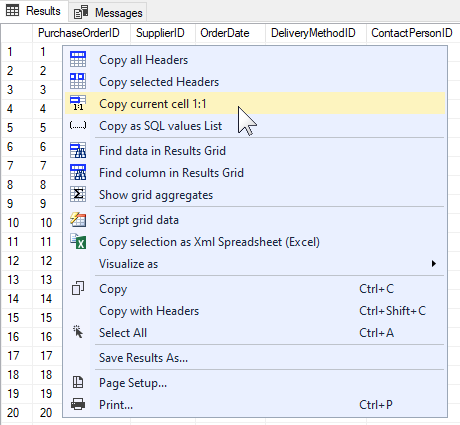
SSMSBoost solves this problem with "Copy current cell 1:1" command. To use this feature select the cell you want to view/copy, open context menu and click "Copy current cell 1:1" - full data will be copied to clipboard without any modifications.
Copy as SQL values List
This feature can be useful when you have some dataset in Results grid and you need to add a filter based on IDs from several rows to your query. If you select and copy them using just regular SSMS functionality every value will appear in a new line, String and DateTime values will not be in a ready-to-use format.SSMSBoost speeds up this process significantly: it adds "Copy as SQL values List" function to the context menu and you get a ready-to-use comma-separated native SQL values list which you can paste into "WHERE in ()" and other statements.
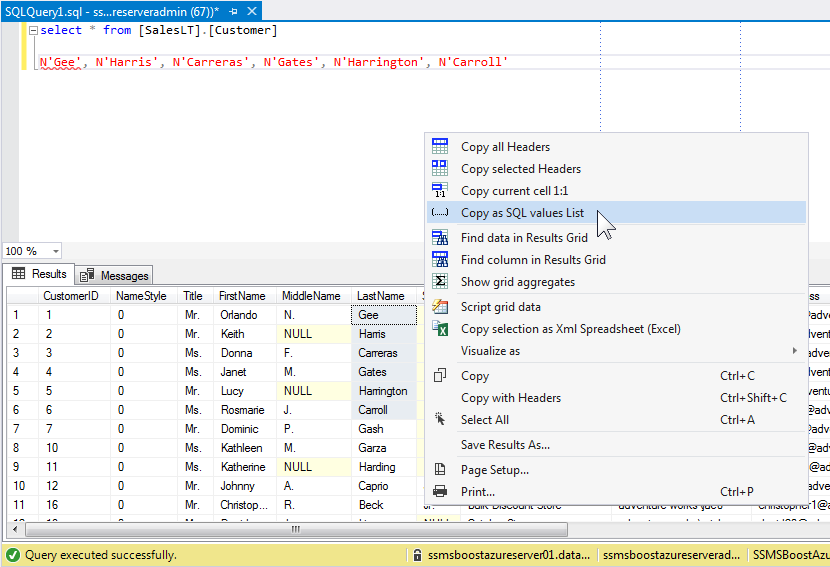
Holding down SHIFT or CTRL button you can change list separators:
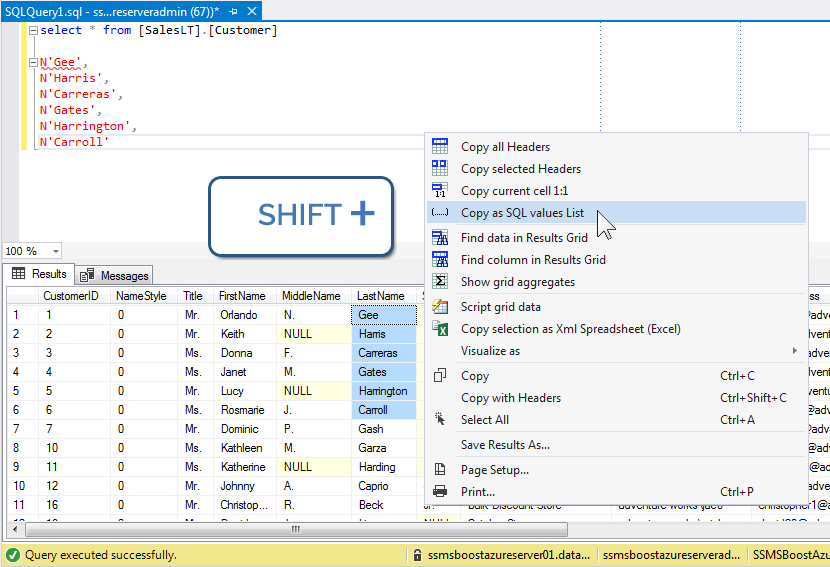
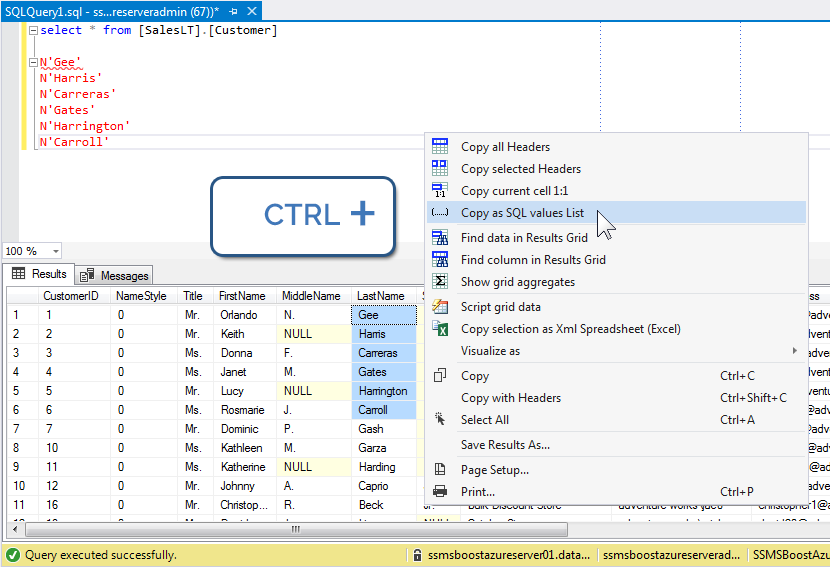
All separators can be customized under SSMSBoost=>Settings=>Grid - data copy
SSMS Results Grid data Visualizers
This feature allows you to export and view files or some big amounts of text or XML data from tables (like files from document storage of sharepoint services).
Required data should be output to Results Grid. You can save the data to a file with a predefined name and open it with custom or default application by right-clicking the cell with required value and selecting "Visualize As->". Despite the fact that SSMS truncates long data from VARBINARY/VARCHAR fields when displaying
them in Results Grid, SSMSBoost extracts complete cell value as it works with internal SSMS storage. You can see how a picture from [ThumbNailPhoto] field is visualized below:
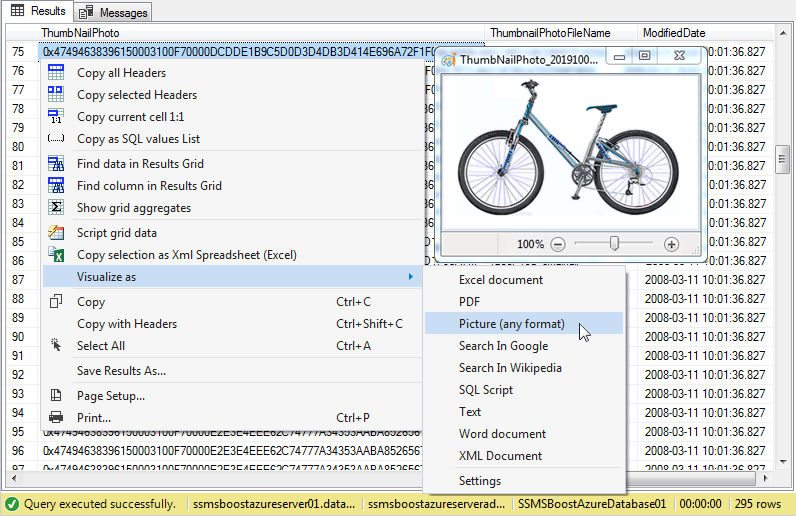
In SSMSBoost->Settings->Grid Visualizers dialog you can configure the list of Visualizers:
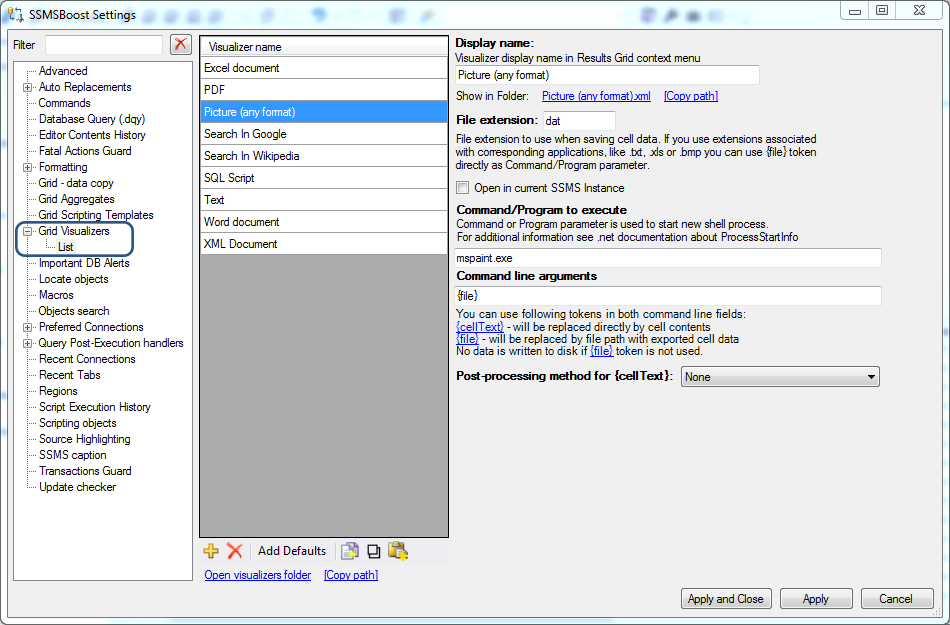
You can define Visualizer name, file extension for saving data and also a default application to open saved files. If you leave Command/Program to execute path empty SSMSBoost will perform "Shell.Open" - forcing windows to open file using associated application.
Here's a trick for using this feature: if your field contains images of different types like ".bmp", ".png", ".jpg" and others you do not have to define a separate visualizer for each type. Just define a visualizer (e.g. "Picture") and extension to save (e.g.".dat"). Then associate this extension with the MS Paint in Windows OS. MS Paint will analyze the contents of ".dat" file and display the image correctly, no matter if it is ".jpg" or ".bmp". This trick might also work with other picture viewers.
In SSMSBoost->Settings->Grid Visualizers dialog you can configure the list of Visualizers:
You can define Visualizer name, file extension for saving data and also a default application to open saved files. If you leave Command/Program to execute path empty SSMSBoost will perform "Shell.Open" - forcing windows to open file using associated application.
Here's a trick for using this feature: if your field contains images of different types like ".bmp", ".png", ".jpg" and others you do not have to define a separate visualizer for each type. Just define a visualizer (e.g. "Picture") and extension to save (e.g.".dat"). Then associate this extension with the MS Paint in Windows OS. MS Paint will analyze the contents of ".dat" file and display the image correctly, no matter if it is ".jpg" or ".bmp". This trick might also work with other picture viewers.
Recent Connections - connections history in SSMS
SSMSBoost keeps track of the connection history and allows you to access it in 2 ways:
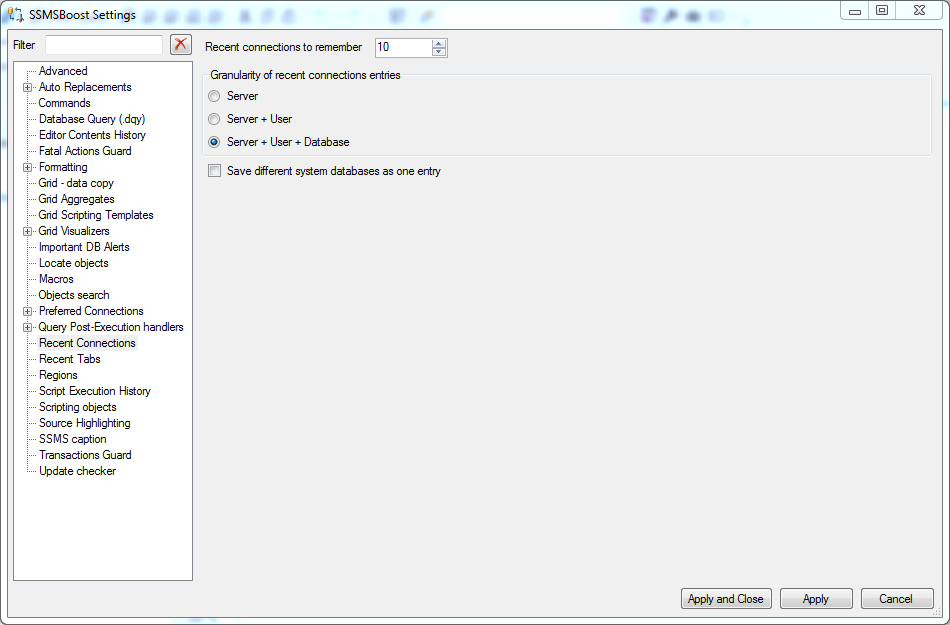
- Using Quick connection switch drop-down on the toolbar:
- Using SSMSBoost->Recent->Pick recent connection command on the toolbar which displays the list of recent connections.
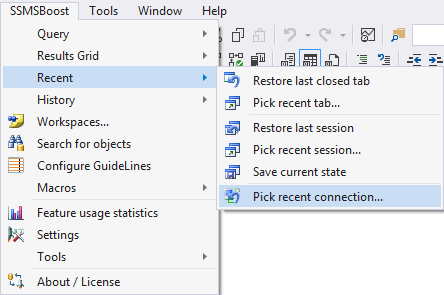
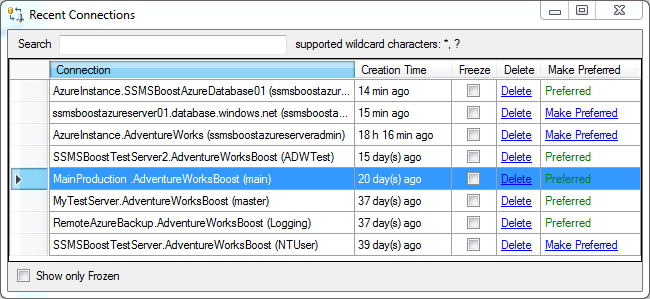
This list allows you to connect to any available connection or promote a recent connection to Preferred Connection. If you tick "Freeze" option for any connection it will remain in the list until unticked or manually deleted. To filter all your frozen connections check "Show only Frozen" checkbox.
Recent Tabs
Recent Tabs feature keeps track of currently opened documents. SSMSBoost remembers document names and their connections.
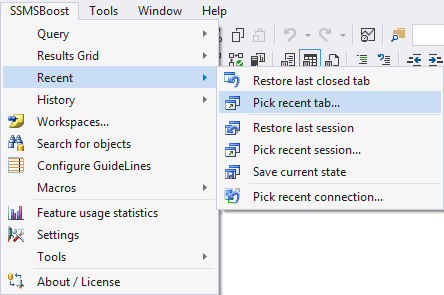
If documents are new and were not saved (Query1.sql) they will be still remembered and unsaved content will be saved and merged with SQL Editor Contents History. You can use this feature by using one of the following commands:
If documents are new and were not saved (Query1.sql) they will be still remembered and unsaved content will be saved and merged with SQL Editor Contents History. You can use this feature by using one of the following commands:
- Restore last closed tab restores the last closed tab including its connection with no further questions (provided "Restore Connection" checkbox is checked)
- Pick recent tab shows Recent Tabs dialog, allowing you to choose one of the Tabs from the history:
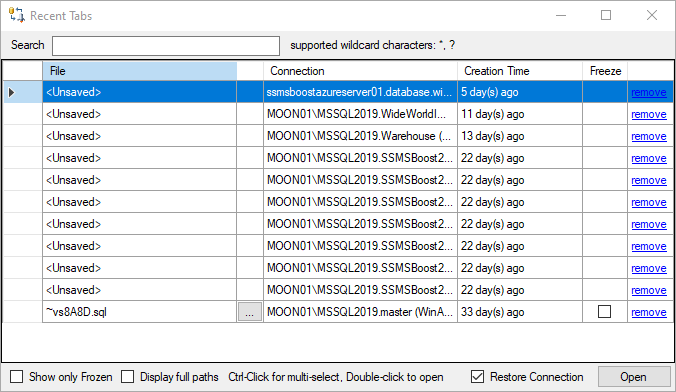
"Freeze" option allows you to force persistence of the tab in the Recent Tabs until unticked or manually deleted
"Display full paths" option displays full path to the saved *.sql files
Recent Sessions / Restore last session
SSMSBoost keeps track of your working environment and opened documents. In case of an unexpected failure you have the possibility
to restore the last session or one of the previous sessions completely or partially. This includes restoring all saved (with filename)
and unsaved (QueryN.sql) documents including their connections.
To take advantage of "Restore last session" and "Pick recent session" commands go to SSMSBoost->Recent:

Here is how "Pick recent session" dialog looks like:
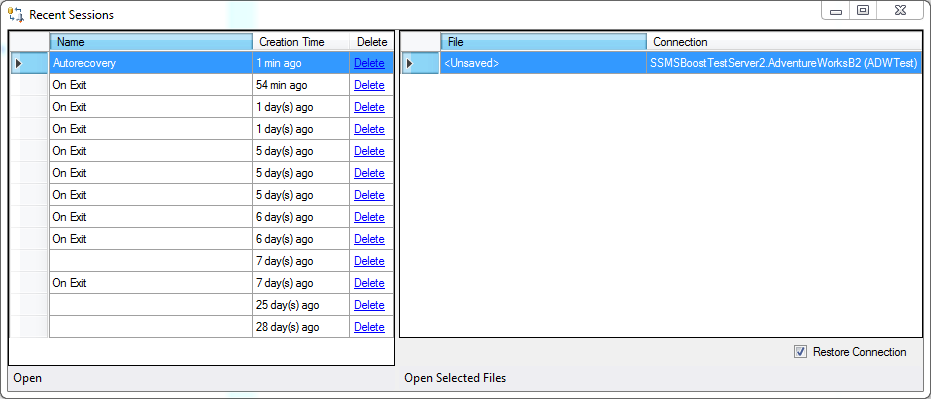
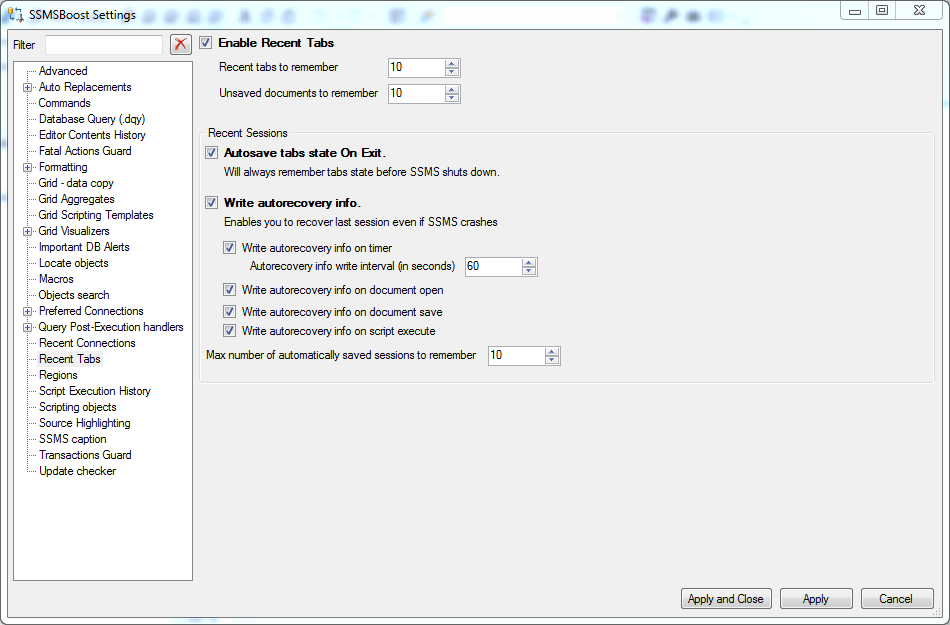
Make sure you check SSMSBoost Settings->Recent Tabs for fine-tuning options.
Note that these settings affect not only Recent Sessions but also Recent tabs functionality.
To take advantage of "Restore last session" and "Pick recent session" commands go to SSMSBoost->Recent:
Here is how "Pick recent session" dialog looks like:
Make sure you check SSMSBoost Settings->Recent Tabs for fine-tuning options.
Note that these settings affect not only Recent Sessions but also Recent tabs functionality.
SQL Editor contents history: Infinite UNDO possibility.
SSMSBoost makes regular backup snapshots of currently opened document to disk providing you with the possibility of getting back to older
versions of your work in the future. It is not only a "backup copy" it is also a modification history (sometimes you want to restore some specific version of your script).
The feature is disk size friendly: no data will be written if there were no changes since the last snapshot.
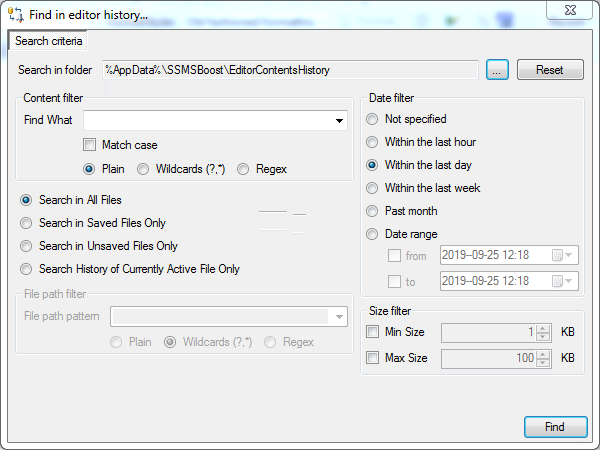
History is saved on your disk in simple text format, however, we have added some advanced search functionality that allows you to search for previous versions of the current document right from SSMS environment.

Search results can be compared to the currently opened document with your favorite FileDiff tool, like WinMerge.
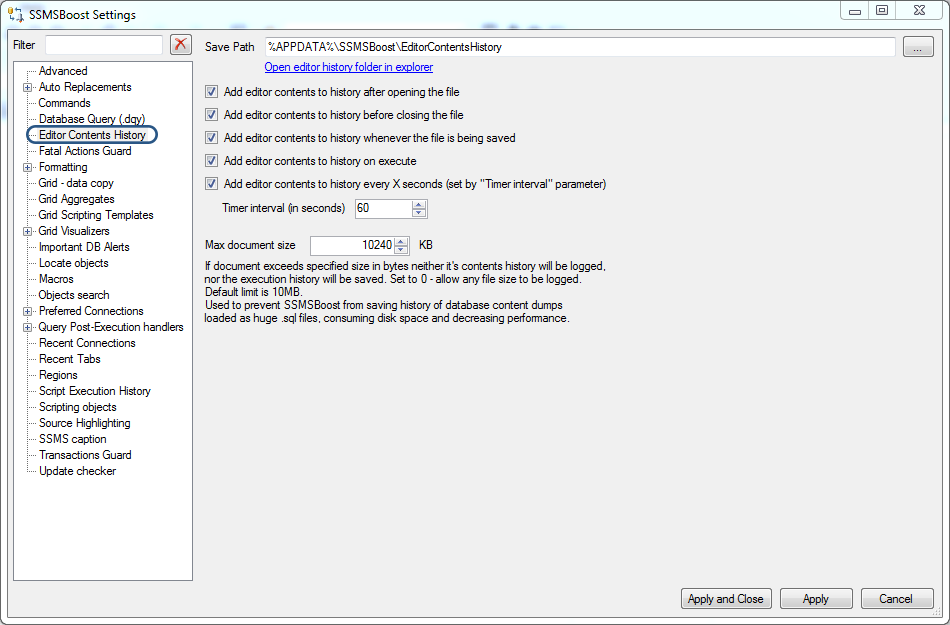
Make sure you check SSMSBoost->Settings->Editor Contents History for fine-tuning options :
The feature is disk size friendly: no data will be written if there were no changes since the last snapshot.
History is saved on your disk in simple text format, however, we have added some advanced search functionality that allows you to search for previous versions of the current document right from SSMS environment.
Search results can be compared to the currently opened document with your favorite FileDiff tool, like WinMerge.
Make sure you check SSMSBoost->Settings->Editor Contents History for fine-tuning options :
Executed SQL Statements History
SSMSBoost saves executed statements along with the information about execution results to local folder. This feature allows you to search for queries that you ran in the past and reuse them again. It can be helpful when you need to recover valuable scripts or analyze your actions on a specific database. You might be familiar with a situation when your customer asks for "the same report but for the last year" right after you have closed your temporary script without saving it.
With SSMSBoost you can recover this information and use it again.
This feature can be configured in SSMSBoost Settings->Script Execution History.
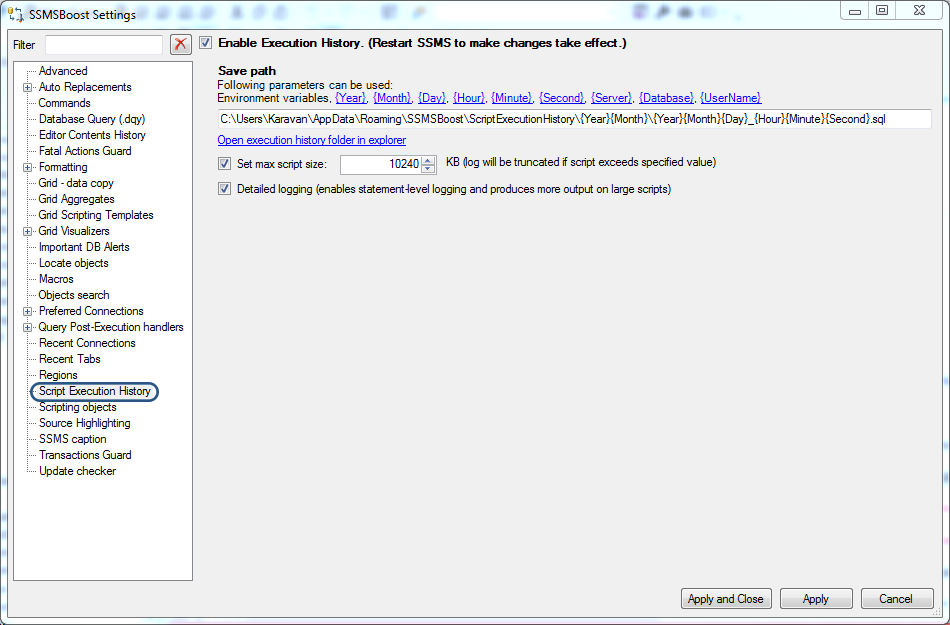
You can define storage path, file naming template + a couple of other fine-tuning options.
Use History->Find in Execution History for archived statements search.

Refine your search with the help of date filter, size filter, wildcards and regular expressions.

This feature can be configured in SSMSBoost Settings->Script Execution History.
You can define storage path, file naming template + a couple of other fine-tuning options.
Use History->Find in Execution History for archived statements search.
Refine your search with the help of date filter, size filter, wildcards and regular expressions.
Workspaces
Workspaces are helpful when you need to open some set of files connected to individual databases. If you have changing tasks/customers it might be
reasonable to create an individual Workspace for each customer to easily load all scripts connected to the right databases at the right time. The functionality of Workspaces
is similar to that of Recent Sessions but with extra possibilities of giving Names to Sessions and saving them for a long time.
You can find Workspaces under SSMSBoost->Workspaces:

And on SSMSBoost toolbar under this icon . These are the main features of Workspaces:

And on SSMSBoost toolbar under this icon
. These are the main features of Workspaces:- Named set of documents
- Own pre-set connection per document
Vertical Guidelines
Vertical GuideLines is a useful feature that helps you to stay in control of maximum "reasonable" source code width. To setup color and column positions of Vertical GuideLines go to SSMSBoost-> Configure GuideLines:

You can configure one or several lines positions and define their color.
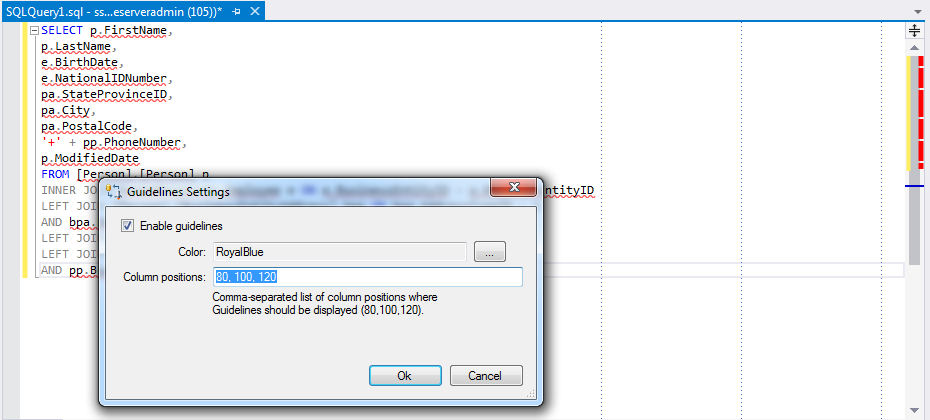
You can also deactivate this feature if you are used to a clean SQL Editor.
You can configure one or several lines positions and define their color.
You can also deactivate this feature if you are used to a clean SQL Editor.
Fatal Actions Guard
There is always a risk of ruining data due to improper execution of UPDATE or DELETE statement without WHERE clause. In theory, of course, this should never happen as regular backups are supposed to be done, triggers and foreign keys are there to stop the deadly modification. But in reality additional protection can save you hours or work or even your job ;)
Fatal Actions Guard parses scripts executed in SSMS and checks for potentially dangerous statements like DELETE or UPDATE with missing WHERE clause or the usage of TRUNCATE statement which bypasses delete triggers. To get the overview of this feature go to SSMSBoost Settings -> Fatal Actions Guard:

It is possible to set an action if critical statements are found: should the execution be stopped or should the user be able to continue after confirming his/her intentions. You can also exclude particular tables from this check ("Exclude table names"). Moreover, you can add custom tokens that will cause the following actions if found:
Fatal Actions Guard parses scripts executed in SSMS and checks for potentially dangerous statements like DELETE or UPDATE with missing WHERE clause or the usage of TRUNCATE statement which bypasses delete triggers. To get the overview of this feature go to SSMSBoost Settings -> Fatal Actions Guard:
It is possible to set an action if critical statements are found: should the execution be stopped or should the user be able to continue after confirming his/her intentions. You can also exclude particular tables from this check ("Exclude table names"). Moreover, you can add custom tokens that will cause the following actions if found:
- "Ask" token - will force SSMSBoost to ask a user for execution confirmation. For example, if you add "#checklater" token in "ask" tokens list and start adding it to your scripts SSMSBoost will keep asking you for execution confirmation until you delete all these tokens. This can be practical if you are working on some script and want to mark critical places that should be verified.
- "Prohibit" token has a pretty similar logic but in case of triggering SSMSBoost will not allow you to run the script at all. You can add it to the script files that are not intended for blind execution. Sometimes system administrators collect frequently used commands in one script and it can be fatal if someone executes that file.
- "Magic unblocking" tokens allow you to disable execution guard for some particular script. For example, if you often use "full wipe" script to initialize your test database and use TRUNCATE there just add #breakingbad in settings and then add this token as a comment to your script to have the Execution Guard disabled that particular file.
Run selected script as Database Query (.dqy) in Excel
Microsoft Excel has a perfect possibility of running direct database queries and using results for further
processing: as a simple data table or as a base for Pivot tables and Charts. However, you have some clicks to do before your query gets executed in Excel. SSMSBoost allows you to do it all in one click:
IMPORTANT: Make sure you check SSMSBoost->Settings->Database Query (.dqy) for fine-tuning options.
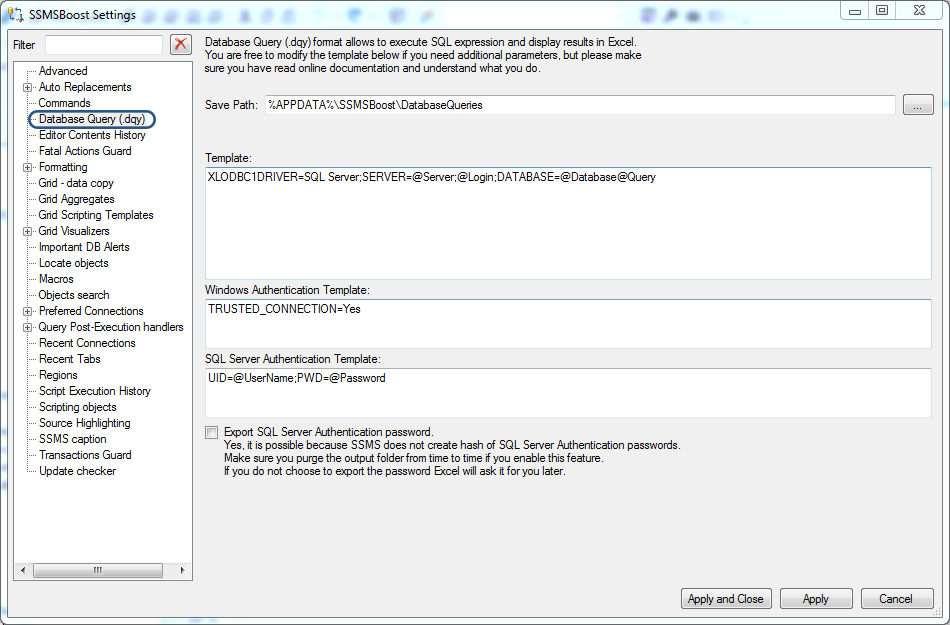
SSMSBoost can export connection password in clear text form for SQL Server native authentication which might be a big problem if you are going to share your *.dqy file with someone else. And yes - this is a workaround of how to restore a forgotten SQL Password for some connection that is still present in your recent connections list.
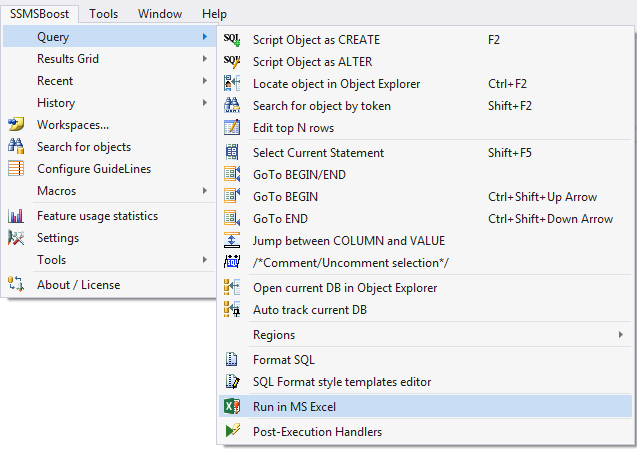
- Select the query that you need to export for execution to Excel
- Execute SSMSBoost->Query->Run in MS Excel command
- SSMSBoost will create a Database Query (*.dqy) file containing selected SQL Statement and current connection information
- *.dqy file will be passed to Excel for further processing. You may be prompted to adjust security settings in Excel to allow the processing of "*.dqy" files
IMPORTANT: Make sure you check SSMSBoost->Settings->Database Query (.dqy) for fine-tuning options.
SSMSBoost can export connection password in clear text form for SQL Server native authentication which might be a big problem if you are going to share your *.dqy file with someone else. And yes - this is a workaround of how to restore a forgotten SQL Password for some connection that is still present in your recent connections list.
Intellisense Completion Fix
SSMS 2012 always sets "Intellisense autocompletion" to "On" whenever you open a new query window. This is the unfixed bug confirmed by Microsoft. SSMSBoost adds the possibility to define global default setting for IntelliSense behavior.
Go to Settings->Advanced->Intellisense "Completion Mode" enabled by default and tick the appropriate checkbox.
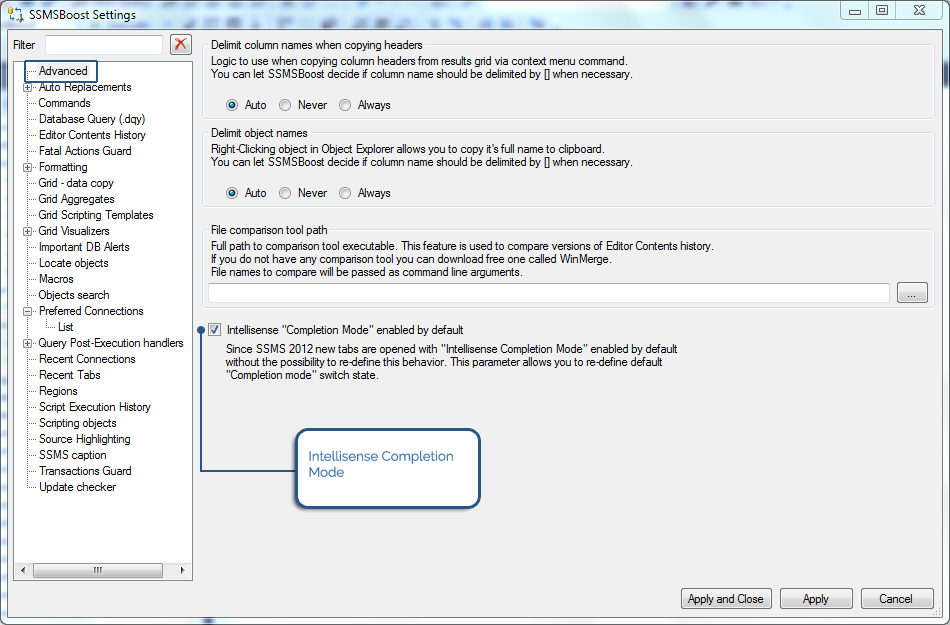
Go to Settings->Advanced->Intellisense "Completion Mode" enabled by default and tick the appropriate checkbox.
Results Grid Aggregates
MS Excel has a very handy feature that allows its users to select several cells and to see their SUM in the status bar.
SSMSBoost adds even more advanced Aggregates functionality to Results Grid.
All you need to do is to select a range of cells, SSMSBoost will automatically activate Aggregates windows and start displaying aggregates:

By clicking checkboxes below the calculated results you can select which aggregates to calculate: Sum, Min, Max, Count, Nulls, Distinct Count, Avg and Data Lengths.
Please note, that some aggregates are data type specific and will not be calculated (like there is no SUM for Strings).
Aggregates window, like most of other SSMSBoost windows, is a dockable floating pane which can be docked in SSMS environment like any other window. You need to size/dock it when it appears for the first time.
There are some fine-tuning options available under SSMSBoost->Settings->Grid Aggregates. Make sure you check them and choose the best settings for your use case.
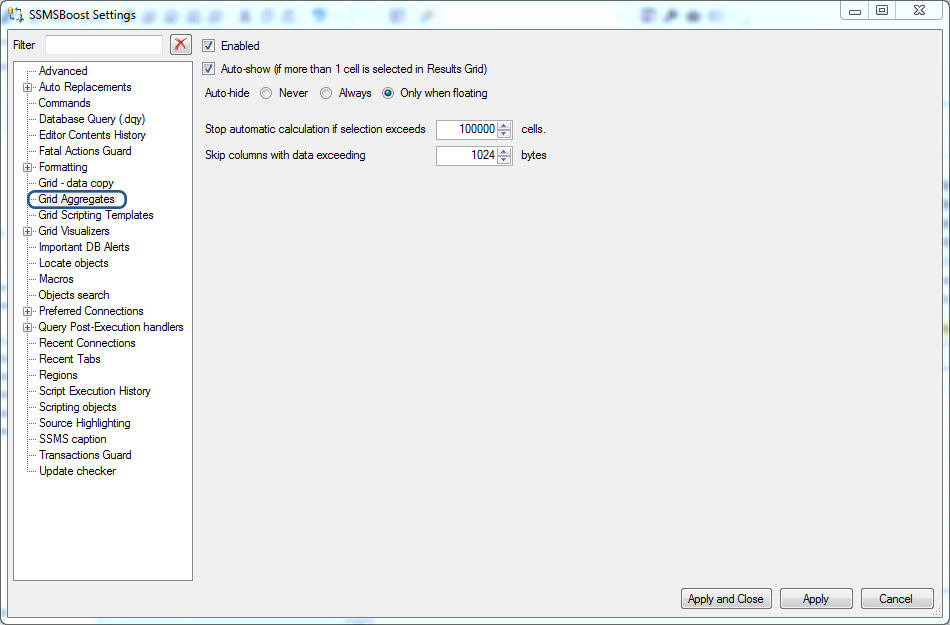
All you need to do is to select a range of cells, SSMSBoost will automatically activate Aggregates windows and start displaying aggregates:
By clicking checkboxes below the calculated results you can select which aggregates to calculate: Sum, Min, Max, Count, Nulls, Distinct Count, Avg and Data Lengths.
Please note, that some aggregates are data type specific and will not be calculated (like there is no SUM for Strings).
Aggregates window, like most of other SSMSBoost windows, is a dockable floating pane which can be docked in SSMS environment like any other window. You need to size/dock it when it appears for the first time.
There are some fine-tuning options available under SSMSBoost->Settings->Grid Aggregates. Make sure you check them and choose the best settings for your use case.
Query Post-Execution handlers
Possible use cases:-
Configure automatic e-mail notifications via Outlook upon query execution completion. Start long-running database maintenance query and go home. Get the execution result by email when it is finished.
For debugging or educational purposes: save long-running queries source text to some specific file location or database table for later analysis and improvement
Pre-configure automatic steps for manual post-execution like: script ResultsGrid to File as Excel / Send it by e-mail as an attachment
Send yourself a "Query execution complete" message using your favorite messaging system (provided it supports sending messages from command line)
 button on the toolbar.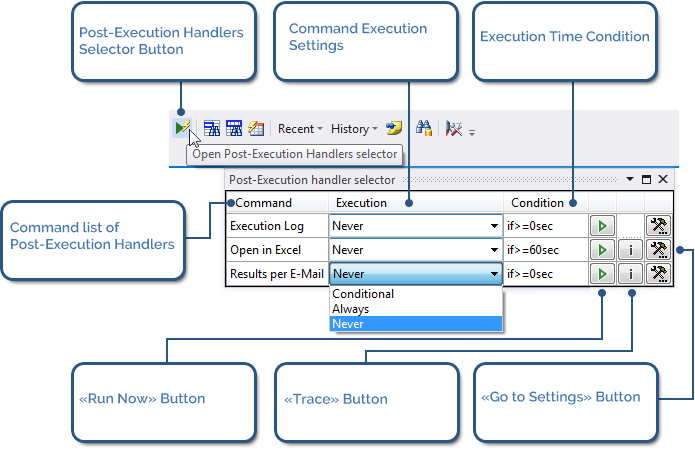
If you set info messages to be shown upon query execution completion a pop-up notification will appear in the top right corner of the screen:
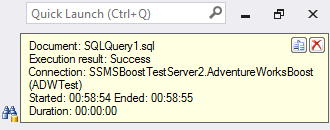
If query execution finishes while you are working in another application a notification message in system tray is shown:
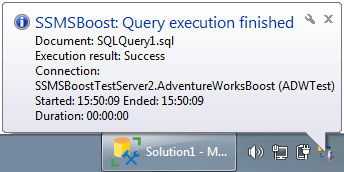
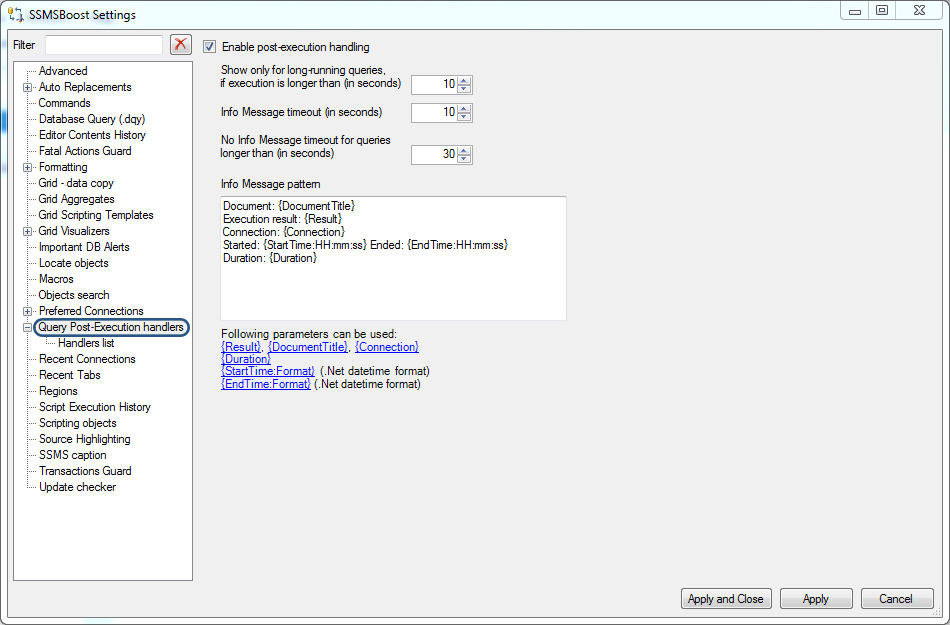
To configure pop-up message appearance and timings go to SSMSBoost->Settings->Query Post-Execution handlers :
For more detailed settings enter Handlers list submenu:
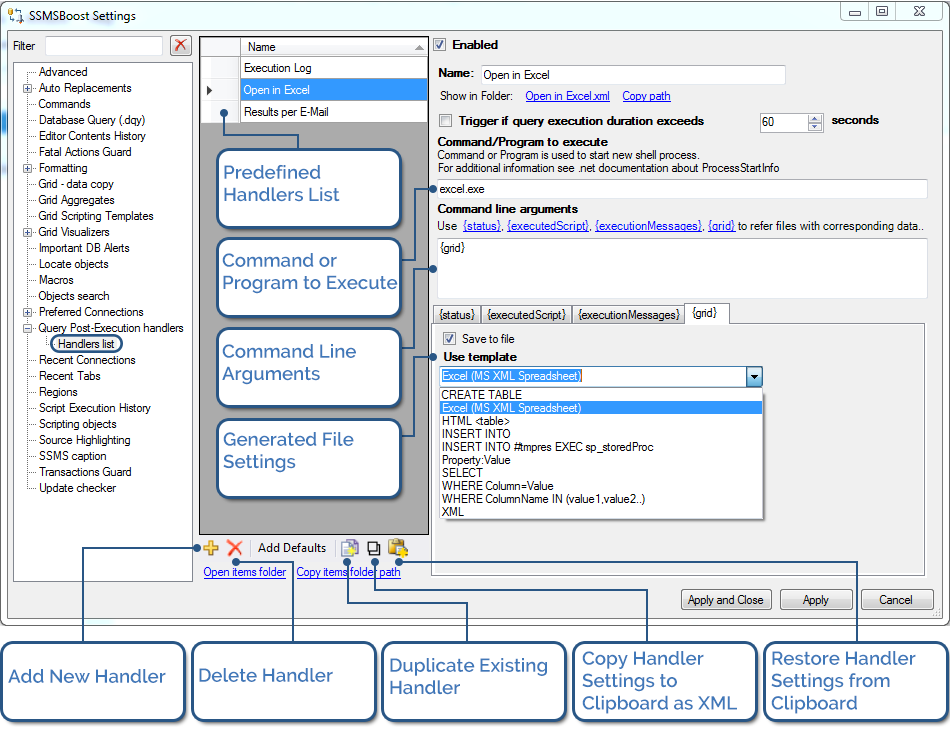
Every handler consists of the following essential parts:
-
Command line/Program to execute (can be left empty)
Command line arguments
Files that can be generated based on Execution Status result, Execution Script, Execution Script Output or Data Grid. Depending on the situation you can decide which data you would like to save to a file (just to archive it) or reuse the generated file in command line.
 button. We ship several handler patterns out-of-the-box which you can use as an example for your experiments. If you accidentally deleted predefined patterns click "Add Defaults" to restore them.
Transactions Guard
Whenever the execution of the last SQL batch leaves open transactions, SSMSBoost pops up a floating information window with a reminder. One reminder window is shown for each SQL Editor tab.
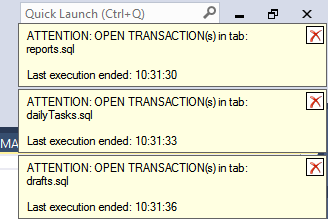
The reminder closes itself automatically when @TRANCOUNT reaches 0 but it can also be closed manually.
This feature reuses native SSMS functionality that checks for open transactions every time you try to close SQL Editor window. Due to this fact we do not show the number of open transactions (native function returns only "yes" or "no").
You can always check the number of open transactions using SELECT @TRANCOUNT statement.
You can disable this functionality at SSMSBoost->Settings->Transactions Guard

The reminder closes itself automatically when @TRANCOUNT reaches 0 but it can also be closed manually.
This feature reuses native SSMS functionality that checks for open transactions every time you try to close SQL Editor window. Due to this fact we do not show the number of open transactions (native function returns only "yes" or "no").
You can always check the number of open transactions using SELECT @TRANCOUNT statement.
You can disable this functionality at SSMSBoost->Settings->Transactions Guard
Create simple macros in SSMS re-using existing commands
SSMSBoost add-in allows you to combine existing SSMS commands (as well as the commands of other add-ins) and thus create simple macros. The best example would be two macros that we have already created for you:
Execute to Grid - executes statements and outputs results to Grid pane
Execute to Text - executes statements and outputs results to Text pane
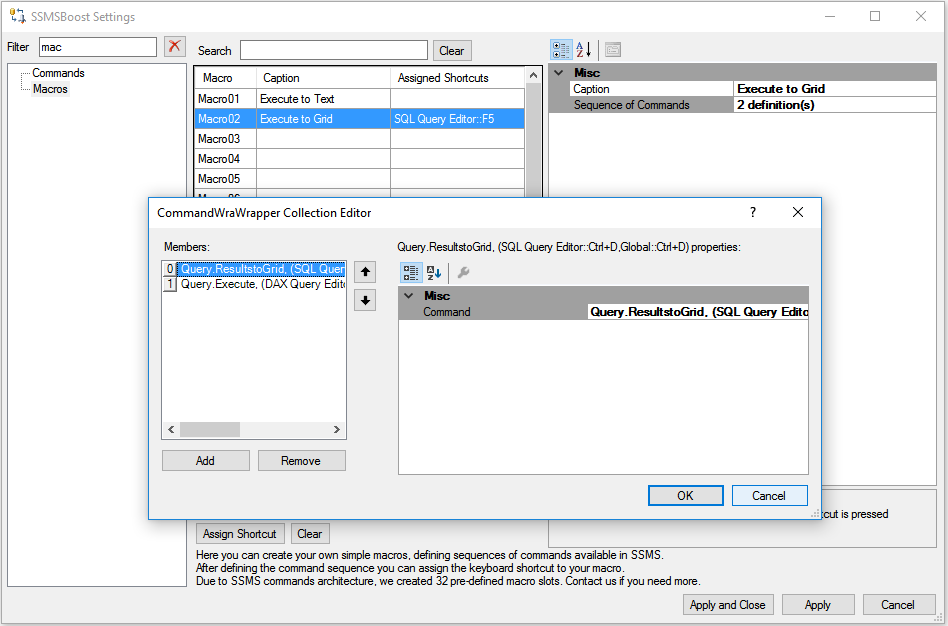
Execute to Grid is created as a sequence of two existing SSMS commands: Query.ResultsToGrid and Query.Execute. When macro is created you are free to assign shortcuts and place the button on the toolbar to speed up the access to this functionality.
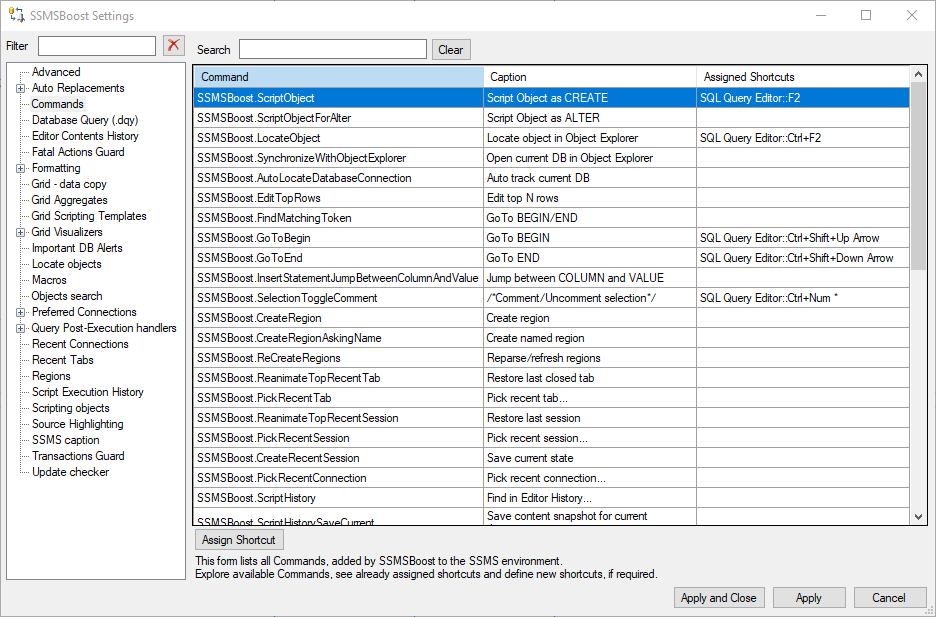
For your convenience we have listed all SSMSBoost commands on a separate Settings page named "Commands". In addition to all the available commands, you can see the assigned shortcuts and easily redefine them.
If you are looking for an easy to read list of all commands available in SSMS use our SSMS Commands Dump feature.
Be creative, do it yourself!
Execute to Grid - executes statements and outputs results to Grid pane
Execute to Text - executes statements and outputs results to Text pane
Execute to Grid is created as a sequence of two existing SSMS commands: Query.ResultsToGrid and Query.Execute. When macro is created you are free to assign shortcuts and place the button on the toolbar to speed up the access to this functionality.
For your convenience we have listed all SSMSBoost commands on a separate Settings page named "Commands". In addition to all the available commands, you can see the assigned shortcuts and easily redefine them.
If you are looking for an easy to read list of all commands available in SSMS use our SSMS Commands Dump feature.
Be creative, do it yourself!
Manage keyboard shortcuts
Note: this functionality is only present in SSMS 2008-2014.
Users of SSMS 2016 and later versions do not need this feature and can use internal shortcuts editor connected with our Macros functionality. Additionally, in SSMS versions starting from 2016 SSMSBoost displays the full list of its own commands under Settings->Commands. This menu item displays the assigned shortcuts and allows you to set new ones.
In SSMSBoost for SSMS 2008-2014 Shortcuts management is merged with Macros functionality, which allows you to create sequences of commands with an assigned shortcut. If you want to assign a shortcut to a single command (SSMSBoost or any other command), just create a macro containing a single command and assign a shortcut to it.
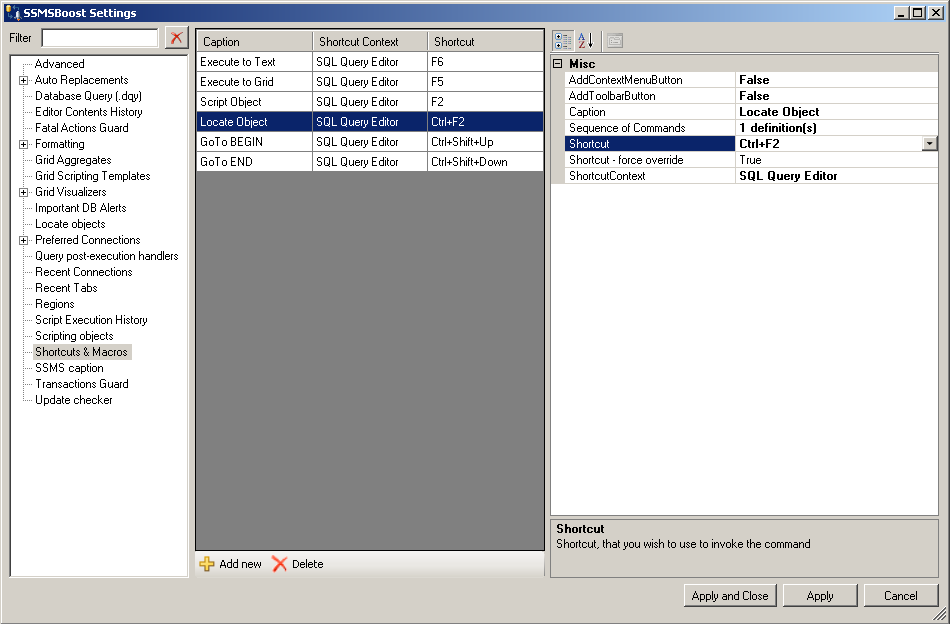
Users of SSMS 2016 and later versions do not need this feature and can use internal shortcuts editor connected with our Macros functionality. Additionally, in SSMS versions starting from 2016 SSMSBoost displays the full list of its own commands under Settings->Commands. This menu item displays the assigned shortcuts and allows you to set new ones.
In SSMSBoost for SSMS 2008-2014 Shortcuts management is merged with Macros functionality, which allows you to create sequences of commands with an assigned shortcut. If you want to assign a shortcut to a single command (SSMSBoost or any other command), just create a macro containing a single command and assign a shortcut to it.
SSMS Commands dump
SSMS environment has a technical name for every function/command that it offers on the toolbar and in menus. On top of that, all installed add-ins and extensions register their functions in SSMS environment. With the help of our Dump SSMS Commands facility you can get the list of all functions registered in your SSMS instance and, for example, perform a quick search for the functionality that you are interested in. It saves a lot of time when searching for some specific functionality. Moreover, SSMSBoost outputs associated shortcuts (if any shortcuts associated).
To use this command go to SSMSBoost->Tools->Dump SSMS Commands:

To use this command go to SSMSBoost->Tools->Dump SSMS Commands:
Update Checker
To can stay notified about new product updates go to SSMSBoost->Settings->Update checker and configure your preferences.

You can check for updates manually by clicking "Check now" button or set the frequency of automatic update checks
You can check for updates manually by clicking "Check now" button or set the frequency of automatic update checks
Miss your favorite feature ?
If you would like to see your feature proposal implemented in our add-in, please do not hesitate
to contact us via e-mail: (5)upp(0)rt(at)(5)(5)m(5)b(0)(0)st(dot)c(0)m or using our Forum.
We are constantly improving our SSMS plug-in and a big part of the functionality is based on user proposals and feedback that we receive.
Sincerely yours,
SSMSBoost team.